Setting up a class schedule in DreamClass is straightforward, once you understand how lessons, calendars, and recurring sessions work together through its built‑in scheduling and timetables tools. In short, you create lesson schedules for each subject, assign when they meet, and let DreamClass handle visibility for teachers, students, and families.
This guide explains how to build a clear, flexible class schedule in DreamClass, why the system works the way it does, and how to avoid the most common setup mistakes. It’s written for private schools, homeschool collectives, and small training institutions that need structure without complexity.
What is a class schedule in DreamClass?
In DreamClass, a class schedule is created by adding lessons to each subject or course.
Rather than forcing every class into a single timetable, DreamClass treats each subject as its own schedule unit. A lesson defines when that subject meets, how often it repeats, and how long it runs. As a result, your class schedule stays accurate even when different subjects follow different patterns.
This approach works well for schools with rotating days, part-time instructors, or mixed-age groups. It also makes changes easier later, since you can update one subject without breaking the entire schedule.
How do you set up a class schedule using lessons?
There are two ways to create a class schedule in DreamClass. Both methods lead to the same result, so you can choose the one that fits how you prefer to work.
Option 1: How to create a class schedule from inside a class
This method is ideal when you already think in terms of classes and subjects and want a clean, repeatable setup that scales well.
How to create a class schedule from a class:
- Go to Classes and open the class you want to schedule.
- Select the subject or course.
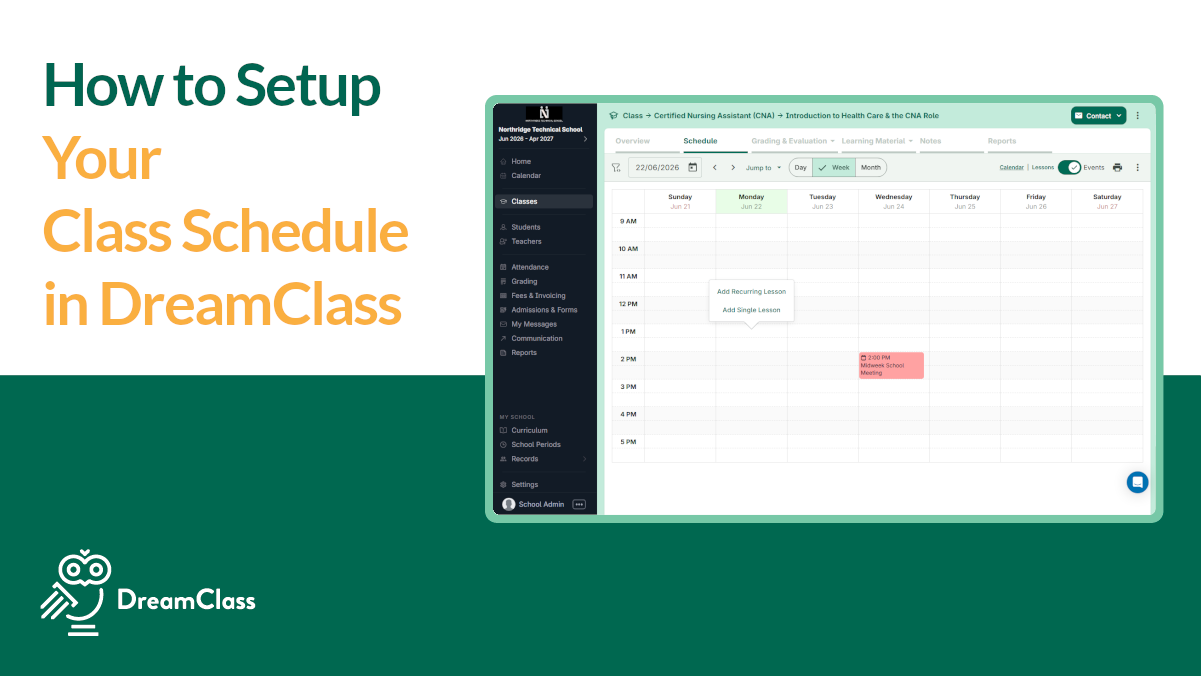
- Open the Schedule section.
- Choose the days of the week the class meets.
- Set the start date, end date, start time, and duration.
- Save the lesson.
Once saved, DreamClass automatically adds the lesson to your school calendar. If it does not appear immediately, check that your calendar view is set to the correct month or term.
Option 2: How to build a class schedule from the calendar
This approach works best if you prefer a visual, drag-and-drop style workflow and want to see existing lessons as you build your schedule.
How to build a class schedule from the calendar:
- Open the Calendar.
- Click the time slot where the class should take place.
- Select the class and subject.
- Choose whether the lesson is single or recurring.
- Confirm the duration and save.
The calendar method creates the same lesson structure as setting up lessons from a class. The difference is simply whether you prefer working visually or from within each class.
▶️ Watch the video:
0:00 Hi there, this is Lida, and in this quick video I’m going to show you how you can add your, uh, lessons in your classes and how to set up your calendar.
0:11 So the first thing is to understand what is a lesson for us. So when you go to first grade, these are the courses that you’re offering, and math has its own schedule.
0:20 So essentially, when do I offer math? That’s the question that we’re answering here. So when you add Monday, Tuesday, Wednesday, Thursday, and Friday, you see the start and the end date.
0:33 So sometimes when you’re setting up the new academic year, you just have to add. And when you hit save, you’re like, where did it go?
0:43 Uh, because right now we have May, I won’t be able to see my schedule unless I head over to August.
0:52 So this colorful thing here is called a lesson for DreamClass. So there’s one way to go to first grade, then to go to ancient Greek, schedule, set it up, go back.
1:04 Another option is to go through the calendar by selecting the time that you have this lesson. If you’ve noticed I have set up recurring lesson because this case I have this every Monday and Thursday.
1:20 At 8 a.m. I set up the amount of hours. Weekly, save. So if you head over again to the month of August, the classes have been set up.
1:34 Sometimes when you’re new to the calendar and you’re just getting started, you’re wondering what is the difference between recurring and single. The difference between the two is that a single class just runs one time with Michael Brown, and the recurring runs every week until the end of the year.
1:56 If you notice that your calendar doesn’t start the time that you wanted to start, you can go to the settings by visiting calendar settings and you can actually change the start and the end time of the calendar.
2:11 If you also don’t have any working days, you can remove them from showing up over here. And last but not least, you can also add holidays.
2:20 So when you add holidays what the system does let’s select here so we have this holiday and it happens August 19th, just like that.
2:45 So if you’ve noticed the system went ahead and removed these slots completely from that time. So why did the system do that?
2:55 Because when you have a public holiday such as St. Mary, the system just erases what was already here so that the end user, parents and students, don’t feel like they have a class.
3:10 These are some quick things to get you started and let me know if you have any questions down in the video below or you can just contact support at DreamClass.io Thank you for watching!
What is the difference between single and recurring lessons?
Single lessons happen once, while recurring lessons repeat on a schedule.
A single lesson is useful for one-time events, such as guest sessions, exams, or make-up classes. A recurring lesson is used for subjects that meet regularly, such as every Monday and Thursday.
When you create a recurring lesson, DreamClass automatically places it on the calendar for every matching date within the selected range. This saves time and reduces manual errors, especially in larger schedules.
Why does my class not appear on the calendar?
Most of the time, the lesson is scheduled for a future date.
If your class schedule does not appear immediately, check the calendar view. Many schools set up schedules weeks or months in advance. When the calendar is showing the current month, future lessons will not be visible yet.
Switching to the correct month usually resolves the issue. The lesson itself is already saved and active.
How do calendar settings affect your class schedule?
Calendar settings control how your schedule is displayed, not how lessons are stored. These settings help you keep the calendar readable and aligned with your school day.
You can adjust:
- Daily start and end times
- Visible weekdays
- Non-working days
Although these settings do not change lesson data, they make it easier for staff and families to understand the schedule at a glance.
How do holidays work with scheduled classes?
Holidays automatically remove lessons from that date.
When you add a holiday to the calendar, DreamClass hides any lessons scheduled on that day. This prevents confusion and avoids attendance issues for students and teachers.
This behavior is especially helpful for schools that observe public holidays or term breaks, since no manual editing is required.
Who can see the class schedule?
Once your class schedule is set up, it becomes visible across the platform.
Teachers see their teaching times in their portal. Students see their weekly plan. Parents or guardians, when enabled, can view upcoming classes and events. As a result, everyone stays informed without extra messages or reminders.
Why a well-structured class schedule matters
A clear class schedule does more than fill a calendar. It reduces back-and-forth questions, keeps attendance accurate, and builds trust with families. Over time, it also becomes the foundation for attendance tracking, teacher workload planning, and reporting.
Many schools start with spreadsheets or shared calendars. However, those tools often break down as programs grow. A centralized class scheduling software approach gives you consistency without adding complexity.
What should you do after setting up your class schedule?
Once your schedule is in place, most schools connect it to related workflows. These typically include attendance tracking, teacher assignments, and parent visibility. Because everything is already linked to lessons, these next steps require minimal setup.
If you are evaluating DreamClass, the easiest way to understand this flow is to try building one real class schedule and see how it connects to the rest of the system.
Next step
If you want to see how a class schedule connects with attendance, communication, and reporting, you can explore it directly in DreamClass or book a free demo to walk through a real setup.
Related Reads
If you’d like to go deeper into scheduling and planning in DreamClass, these resources are worth exploring:
FAQ
Frequently Asked Questions
Can I change a class schedule after it is published?
Yes. You can edit or delete lessons at any time. Changes update the calendar automatically.
Does DreamClass support different schedules for different subjects?
Yes. Each subject has its own lesson schedule, which allows flexible timetables.
Can parents see schedule changes?
If parent access is enabled, families see updated schedules without manual notifications.
Is DreamClass suitable for homeschool collectives?
Yes. The lesson-based structure works well for part-time schedules and small learning communities.