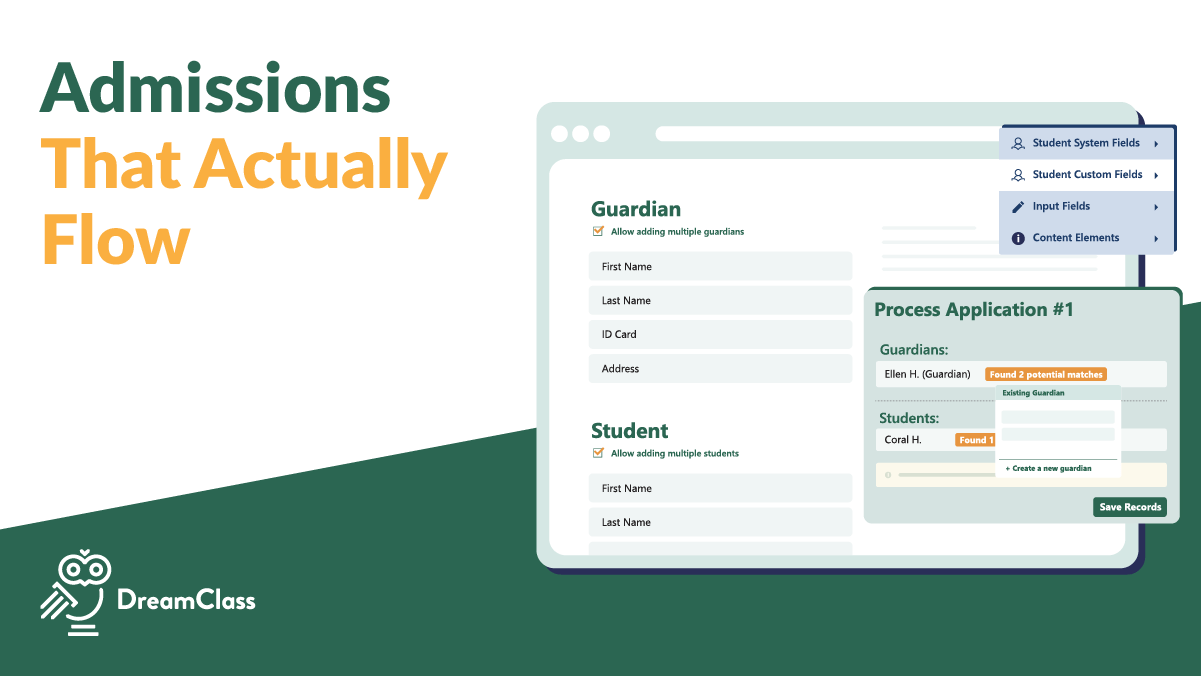
A student admission form is more than a sign-up sheet. It’s the starting point of your entire enrollment workflow, from application review to student records, class placement, parent access, and long-term reporting. Get the structure wrong at the start, and you’ll spend months re-typing information from PDFs, chasing missing guardian details, or rebuilding student records field by field later.
DreamClass lets you build a structured, digital student admission form that feeds directly into student profiles, guardian records and class rosters. So, the data you collect once works everywhere afterward. We have updated how admission forms work since we first covered this topic, including new controls for field types, class selection, fees, and who can access the form. This guide reflects the current process.
Why Does Student Admission Form Structure Matter?
Before you build your form, there’s one principle worth understanding: not every field behaves the same way.
System fields and custom fields save directly into student and guardian profiles, once someone fills them in. Input fields collect an answer for that one submission only, and that answer stays inside the application record, rather than the family’s permanent file. That distinction decides whether a parent’s occupation, a signed policy acknowledgment, or a medical note shows up automatically the next time you open that family’s record, or whether you have to dig back through the original application to find it.
If you run a private school, vocational program, or homeschool collective and want records you can print, share, or audit later, decide upfront which answers need to live in the profile and which ones only matter at the application stage. Let’s see how it works:
How to Create a Student Admission Form in DreamClass
Step 1: Start Your Student Admission Form With the Right Form Type
Under Admissions and Forms, you’ll see four options: Create Form, Admission Form, Custom Form, and Information Update. The Admission Form option is the only one built for new applicants. Custom Form and Information Update exist for later-stage and internal use, and using either one to collect data from new families will leave you with responses that don’t connect to a profile the way you’d expect.
To start:
- Go to Admissions and Forms in the left-side menu.
- Click the green Create Form button.
- Select Admission Form.
- Give it a clear, specific name, such as Admissions 2026-2027, so past cycles stay easy to tell apart later.
Once you save the name, DreamClass opens the form design view. Click Preview early and often. Seeing the form the way a parent or applicant will see it makes structural problems obvious before anyone outside your team ever fills it out.
Step 2: Set Who Fills It Out and What They’re Applying For
Every admission form can be filled out by a guardian or by an adult student applying directly, without needing an existing account first. In the form settings, choose which one applies, then turn on class selection so applicants can request a specific grade level or class directly on the form.
That last setting holds more importance than it looks. Once an admin approves an application tied to a class selection, the student lands directly in that class roster. So, in other words, class selection is what turns a submitted form into a scheduling decision, rather than just paperwork. Set a notification email here too, so your registrar or admissions team gets alerted the moment a new submission comes in.
Step 3: Know Your Four Field Types Before You Build
Most admission form mistakes trace back to this one choice: Which of the four field types you use when adding a question. But, first things first. A system field is a standard field DreamClass already tracks, such as name, birth date, or address, and the answer saves automatically to the student or guardian profile. And, then, a custom field is one you define in advance under Settings, Custom Fields, such as occupation or nationality. And, once you connect it to the form, it saves to the profile the same way a system field does.
Additionally, an input field is a question built directly on the form for that submission only. It’s labeled “used only in form,” so the answer never transfers to a permanent profile. And a content element just displays information, a header, welcome message, or link, and doesn’t collect any data at all.
WIth that knowledge, if you need to reference an answer every time you open a family’s record, such as a parent’s job or a student’s ongoing medication needs, build it as a custom field first and connect it to the form. If you only need the answer for this one application cycle, an input field is the right call, and that’s expected behavior, not a limitation.
Step 4: Structure Your Sections So the Right Data Actually Saves Properly
Every form defaults to three sections: Guardian, Student, and Class. You can add more sections, but where you add a new field determines whether it gets saved at all. So, anything placed under a General section only displays in the form preview and doesn’t save to any profile once submitted. That’s because we treat general sections as a formatting tool, not a data destination.
To collect and retain new information, always add a Guardian section or Student section instead. This is also where document collection lives. We store files such as IEPs, transcripts, or immunization records added under a student section directly to the student’s profile, by default. Not to mention, you can collect more than one file per field.
Step 5: Add Policies, Terms, and E-Signatures
Most schools want families to review a handbook, financial agreement or code of conduct before submitting. To help with that, create a new Guardian or Student section and paste in your policy or terms text as a content element. Then, add a checkbox input field labeled something like “I have read and understood.” That checkbox is deliberately an input field, rather than a system or custom field, since an acknowledgment only matters at the moment of application, not as an ongoing profile attribute.
Make sure you turn on e-signature at the bottom of the form, if your school needs a signed application on file. Add more than one signature line if both a parent and the student need to sign. Signed forms are saved into the exported application PDF, automatically. So, you don’t need a separate document workflow to keep a compliant paper trail.
Step 6: Configure Fees, Multi-Student Applications, and Sibling Discounts
To make the whole process more manageable, you can collect payment right at the point of application. Charge a flat application fee, a per-class fee, or both. And connecting Stripe lets applicants pay online without leaving the form. One reviewer summed up how that helped them in practice:
Exceptionally User-Friendly & Customizable…Outstanding Support!
Our primary investment in DreamClass was to streamline the admissions process and manage billing. It has saved us hours and hours of time, exceeding expectations along the way. We had previously done everything on paper, and it was a nightmare. The simplicity of that feature alone would have been enough for us, but DreamClass has also given us a comprehensive tool to keep all of our information in one place, including attendance, grading, and communications. We continue to develop and use more features along the way, namely on guardian/student-facing side with communications and progress reports.
If your school enrolls siblings, turn on “allow adding multiple students”. That way, one family, say the Brown family with three daughters, can submit a single application covering all three children, instead of filing separately. You can also choose whether the fee applies per student or per family. You can, additionally, apply a sibling discount as a flat dollar amount or a percentage off each additional child’s fee.
Step 7: Control Who Can Access Your Student Admission Form
Before you publish, decide who the link is actually for. DreamClass lets you open the form to anyone, which is the right setting for new-family recruitment. Or restrict it to people who already have an account, which is the setting you want for re-enrollment. Note, though, that skipping this step is the most common way schools end up with duplicate family records. To explain, a returning parent filling out a “new family” form creates a second profile, instead of updating their existing one.
Set an end date for the form, as well. That date determines when DreamClass stops accepting new submissions for that admissions cycle, which keeps year-over-year applications from blending together in your dashboard. 😉
Step 8: Publish and Review Applications
Once your fields, fees, and access rules are set, review the form, save it, and publish when ready. DreamClass generates a convenient, shareable public link you can add to your website, send by email, or include in enrollment announcements. A reviewer described exactly this shift from paper to digital:
Outstanding Support and Responsiveness, Minor Repetitive Tasks Being Addressed
It generates neat PDFs of the report cards, we update the attendance daily, we use the admission forms integrated on our website, we now transition from paper to one digital database.
Alright. Now, on to how Submissions work. So, submissions land in your Admissions dashboard, where you can review each one and change its status between pending, approved, or rejected. And you can export any individual application as a PDF for your files. Then, when approving an application, the system creates the student profile automatically, links the guardian record, and assigns the student to the class they applied for. All, at once.
Note: This guide reflects the current DreamClass admission form builder. If your account still shows the older “New Period Admission Form, Public” naming, reach out to support@dreamclass.io and our team can confirm which version you’re on.
▶️ Watch the video:
00:00 Hello, hi there, this is Lida, and in today’s episode, we’re going to learn how you can build your application form in DreamClass, and how you’re able to collect data from your students and or parents.
00:15 So, in order to get started, I’d like you to log into your account and look to the left, where it says Admissions and Forms.
00:21 So, the first thing that I’d like you to see is that there is a green option here, Create Form. The option that says Admission Form is the only one you should be using.
00:31 The Information Update and the Custom Form are only for later stages in your DreamClass implementation, and by all means, do not use the Custom Form to collect data from new parents.
00:43 Do not also use Information Update, because that’s only for internals. So, let’s start with Admission Form, and then I’ll, explain in the other video how you can leverage information in Custom Forms.
00:56 So, focus on the first step, which is to give it a name. the Application Form is just another form. It’s another where you’re collecting data, so we need to make sure that it makes perfect sense for the purpose that you’re building it.
01:08 Once you give it a name, hit Save, and you’re looking now at the form design. Before we get into the technicalities and the fields and whatnot, I want us to see where we’re going.
01:19 So the preview is an essential part. Click the button Preview Always so that you know where you’re going. So in a very, brief introduction, this is where we’re going.
01:31 You’re gonna share this link. With your potential new, parents or students, and they will fill this out, fill out the data for their Children, and then they will submit the application.
01:42 So now I want to build that with you. So the first thing that I will explain is that what is the form design?
01:48 The form design has three core parts. Sections, fields, and custom sections. So what are the standard sections?
02:02 The standard section is a guardian section. Where you collect information from guardians. The other standard section is called the student registration where they choose what grade level their child will be at and also the student first and personal information such as contact, where do they live, gender
02:23 , birth date, and all this information, right? So this at the at the top is called a section and this is called a field.
02:34 Now there’s an important distinction in DreamClass between a regular system field, a custom field, and content elements and additional technical fields that I will explain very, very soon.
02:49 So I’d like to start with the introduction. The introduction, is the first thing that we saw earlier on. You can name it to welcome to my school or anything else.
03:01 And, an admission form should always have a message. So the content element is either an introductory header, or a message, or a link that somebody can click on.
03:13 I’m going to use that one because I want to be able to have, parents, excuse me, I have two screens, okay.
03:20 So I want parents to be able to see some brief introductory information, and if I go back to the form that you and I were just building, you’re able to see that in my introduction, I enhanced it with this area, okay.
03:35 Very simple, just a welcome message. You can add pictures, do it, you can add colors, you can add anything you want.
03:42 Then, in the settings, if I don’t want to keep this background, the green one, that DreamClass has, you’re able to choose another color, so if your school has a different color, please go ahead and add that here, and you can change the background as well as the buttons.
04:00 The guardian section, if you’re a school that has guardians, keep it, if you’re a college, or if you’re another element, delete that section altogether.
04:09 So in here I want to analyze two things. What is this, and what is this? This is called a system field.
04:18 If you’re new here, an SIS, a School Information System, captures information. So if I take you into a brief visit in the family section, and I click the browns, if you notice on the left, this is, by the way, the guardian section, you can see that this is the personal information.
04:38 There are different boxes waiting for me to type this in. And there is the contact information about where does this person live, but you didn’t have to do any customization for that to be here.
04:52 First, last name, birthday, gender, addresses are standard fields. System fields. What is the key characteristic, trait of the system fields?
05:04 It’s that once you capture this information from the guardian through the admission, it’s automatically saved in their profile. That’s why it says it will be saved in the guardian’s profile.
05:17 But if I were to ask a parent for their occupation, I’m able to use the Add Field button and I have more options here.
05:26 I have System Field, Custom Field, Input, and Content Element. So here’s where it needs you to focus. On the System Field, I can select it and it will be saved.
05:38 It’s gonna say it will be saved in the guardian profile. But what if I added a new Input Field? Because it’s I want the occupation of the parent.
05:49 Now, this is a very, very common question in the admission form, but there’s one problem with it. It says used only in form.
05:59 So now that You will. We’ll be using DreamClass there. We’ve noticed that there is a very important distinction when our customers are building their admission form.
06:08 There are things that only need to be asked on the admission stage that will determine the parents’ ability or family’s ability to join your school, but you don’t necessarily need to be reminded about this particular information once this family has been onboarded and their record has been created.
06:31 So we have input fields, which are things that I can ask, but will not be saved in the parents’ or students’ profile, and it’s going to have the use only inform remark.
06:46 And there’s another world that I would like to show you, which is called In Settings, Custom Fields, and this is your ability to capture custom information and have it collected by the parents through the form.
07:02 The prerequisite is that this. Is created beforehand, so you need to first think about what is it that is important to me and my school that I need to know in order to better serve my community and I need to keep that and transfer this over to the student record afterwards.
07:20 So here, you can see that there’s student and teacher and guardian custom fields and I have one called Occupation here, so I’ve already created it.
07:32 Another important custom field that you might collect, it can be a single student. Select option about nationality. Nationality is not a free text.
07:41 Most of the times it has those answers, right? What have you. And in this option, click Rome 1, it doesn’t have to be.
07:51 matter at this point. And you can add more options. And then you can choose if this field will be able to be edited by your community down the line.
08:01 Hit save. And now you saved your custom field. Let’s go back to the form now. Once you’re done with your custom fields, it’s a piece of cake to connect them with your form.
08:12 So if I want to know the nationality of my audience, I can click in the student section. Notice how I went down and there’s the add field button always at the bottom of the section.
08:23 I can choose to connect that, and this is the, this is what is very important to have, and it will be saved in the student profile.
08:34 What if you want to create a new section to collect information from the students? Choose guardian and choose student, but don’t choose journal or section if you want the information captured to be saved.
08:46 Anything under the general section will not be saved. So if I add a new student section because I want to collect important documentation.
08:57 It’s a very frequent function of the admission form and one that our customers love. So if I want to add a file in the input field, we have one called file.
09:11 File. Files, by default, are saved in the student’s profile. Okay, so long as it’s added under a student section or one of the existing ones we have, if you add it as a general section, general sections are just do it for preview reasons.
09:29 Even if you collect a file, we believe, that it’s only for the admission stage, that you don’t need to save it later on.
09:38 So you see it says, only used in form. I did that on purpose so you can see. That if things matter to you, keep them under the regular student sections.
09:47 Otherwise, they will not be saved. So in the important documentation, I can collect files and I can collect more than one.
09:55 So continue to use the file and add more files. IEPs, transcripts, and then hit save. This is the, really, the, the admission form in a nutshell.
10:09 I’ve given you different, different. definitions of what things are, but essentially, to recap, it’s a form. A form has sections and fields.
10:18 If people submit it, you get the information, and we’re going to get to that in a second. Now that I did, one thing is missing.
10:25 Our ability to add a, a signature. So at the bottom, excuse me, I have two screens. I am able to collect a signature.
10:36 You can add multiple ones, so if people have to, if the parent and the child has to sign this, you can add the signature.
10:45 The signature is saved in the PDF, so you don’t need to worry about that trade. And once we’re done, we now need to go to the other tabs to understand them.
10:55 So this tab is whether you want to collect a In DreamClass, you’re able to collect fees on the stage of the admission.
11:03 You can collect application fees just for the fact that they apply. Some schools do one fee per application per family or per student.
11:13 If you want to allow multi-student submissions, I forgot to show you that you need to click this box at the top, allow adding multiple students.
11:22 So that means a family called the Brown, if they have three daughters, Lida, Connie, and Jira. Ellen, they will be able to submit one for all three children.
11:34 So in that regard, you choose whether you will allow that, and also you choose whether the application will be per student or per family.
11:43 Also, you are, are able to apply discount policies. So from the second child, you can apply 10% or you can choose to minus $10 for every other child or minus 30 and so forth and so on.
11:53 Once you’re done with that, So click publish when you’re ready to launch this. Be extra careful about the end date because that’s the date by which you will submit applications.
12:06 And when you’re ready, click copy and paste it in a browser. And make sure that this red indication is no longer there.
12:16 That means your form is fully live and can be, apologies, wrong, wrong link. Give me a sec. So that means your application for.
12:28 Form is ready to go live and this one is. So you can see how all the information I want to capture is here.
12:35 All the information for the students, including their classes and what not. And then here you also have the documents, the signatures.
12:44 And the payment at the bottom. Once the application comes into DreamClass, you will receive an email. In order for that to happen, make sure that you’ve added your email here.
12:56 And you also have the choice, if you’re a school that wants to hand you the registration of new and, existing families in, in our system.
13:07 You can choose anyone with the link for the, for the new families and restrict it only to people with account for the re-enrollment.
13:14 Re-enrollment is a process that we’re going to look into in another video. Just make sure that when you are launching your application, if it’s for existing parents, to avoid duplicates, make sure that it’s restricted only to parents with an account.
13:29 Thank you for watching this video. As a last step, I just wanted to show you quickly how the applications are going to look like once you receive them.
13:36 So you’re going to have all the applications here. Applications do carry a status that you’re able to change and you can also create new statuses.
13:46 In this case, as you can see, Regina Phalange, this is a new application and I’m able to see everything that this parent has given me access to.
13:54 I can see whether they’ve paid the registration fee or not and I can export their submitted application in a PDF.
14:02 This is everything I wanted to show you today in this brief introductory call about, sorry, video about, the admission. And if you have any questions, you can comment down below, and I’ll be happy to answer or schedule another call with you to make sure that you know how to use the admission platform
14:17 . Thank you for watching this long video. We usually don’t have them as long, but it was important to clarify so you have all the steps you need in place.
14:26 Have an amazing day. we want to hear from you. If you have any questions, let me know and I’ll produce another video on Jumplist.
14:32 can all and call with you. Bye!
How Does This Fit Into Your Full Enrollment Workflow?
Once your student admission form is live, it stops being a standalone document and becomes the front door to your entire enrollment workflow. Applications appear in your admissions dashboard, where you review, change status and track progress. Approved applications convert into official student profiles, and guardians receive portal access automatically.
From there, the same record connects to class management, attendance tracking, gradebooks, transcripts, and tuition management. If you’re enrolling siblings, the same family-grouping logic also applies to ongoing enrollment changes, such as deactivating multiple students from one family group at once when a family withdraws.
Ready to Simplify Your Student Admission Form Process?
If you’re currently chasing paper packets, copying data from spreadsheets, managing enrollment through email threads, your admission form probably belongs in a system built for growing schools, rather than a static PDF.
With DreamClass, you can create, publish, track, and convert applications into official student records, all from one admission management platform. Start with a single form and expand as your school grows, adding class selection, fees, or sibling discounts whenever your enrollment process calls for them. There’s no need to rebuild the form from scratch each time your requirements change.
Related Reads
- Why DreamClass Is the Best Admissions Software for Schools
- How Can School Management Software Streamline K-12 Admissions?
- Online School Fees Payments With Stripe
- Class and Course Tagging in DreamClass
- Top Benefits of Implementing a School Information Management System (SIS)
- How to Build an Effective Enrollment Management System for Small Schools Without Adding More Admin Work
- DreamClass Case Studies: Schools That Transformed Operations With DreamClass
FAQ
Frequently Asked Questions
Can I use the same student admission form for multiple academic periods?
You can, but it’s better to create a new form for each academic period. Setting an end date on each form keeps applications organized by year and stops old and new cycles from blending together in your dashboard.
What happens after a student admission form is approved?
DreamClass automatically creates the student profile, links the guardian record, and assigns the student to any class they selected on the form. From there you manage attendance, grades and communication from the same record.
Can guardians register multiple children with one form?
Yes, if you turn on the multi-student option. A family can submit one application covering several children. You can also apply a sibling discount as a flat amount or a percentage off each additional child’s fee.
Can families pay application fees online?
Yes. Connecting Stripe lets applicants pay a flat or per-class application fee directly on the form, whether you charge per student or per family.
Can I restrict my admission form to existing families only?
Yes. This is the setting to use for re-enrollment, since it stops returning parents from accidentally creating a second, duplicate family profile. Use the open, unrestricted setting only for forms aimed at brand-new families.
Is a public student admission form secure?
Yes. The form itself is public for accessibility, but submissions are stored securely inside your account. Only authorized administrators can review, approve or modify applications.
Do I need technical expertise to set this up?
No. The form builder is designed even for school leaders without IT support. You select field types, structure your sections, and publish, without writing any code.