Whether you’re evaluating DreamClass for your school or you’ve just invited teachers into the platform, one question matters most: Will teachers actually find it easy to use, day after day?
And, for most teachers, this comes down to one simple thing: Can I log in and start using this without extra training, manuals, or setup headaches?
Well, this practical guide walks through DreamClass exactly as teachers experience it. You’ll see how teachers log in, manage schedules, track attendance, enter grades, share learning materials, and communicate without complex setup or ongoing admin support. The goal is simple. That is, to help teachers get productive fast, while giving school leaders confidence that adoption will be smooth.
As such, it’s written for:
- Teachers getting started in DreamClass
- School founders and administrators who want confidence that staff adoption will be smooth
How do teachers log in and get started?
New teachers will receive an automated email from your school with:
- A secure login URL
- A username
- A temporary password
So, from the teacher’s perspective, onboarding is straightforward:
- Open the login link
- Paste the provided username and password
- Log in
If credentials are ever misplaced, teachers can reset them instantly; no admin intervention required.
Why this matters for teachers: You can get started right away, without waiting for training sessions or step-by-step instructions. The first login is quick, predictable, and stress-free.
▶️ Watch the video:
0:00 Hello and welcome to DreamClass, your educational institution’s information platform. You should have already received an email that looks like this, and it includes the URL you need to use in order to log in to your DreamClass account, as well as your username and your password.
0:17 All you need to do is click on the URL so that you won’t be redirected to the login page that looks like this, and then you simply need to copy the username, paste it on the username area, and then click the password, copy it, and paste it on the password area.
0:37 If you ever forget your credentials, simply click from here, in order to be able to reset them. When you’re ready, click Enter.
0:47 This is what the platform looks like. From the left-hand side, on the black panel, you can see the options, which are the tabs that you can click in order to navigate to specific areas.
0:58 You have the home screen, where you’re able to see at a glance information that happened throughout the day today. You can see student birthdays, teacher birthdays, any events, and the courses that are in progress right now, the past courses, and the next courses for the day.
1:15 You can review your schedule from the area right here. You can also, move in the future or in the past.
1:24 You can choose to have the monthly view, and you can also have the calendar view or the lesson view that it will display all of your lessons for the month that you have selected, or for the next months.
1:36 You can also view the events into this view, as well as all, of the lessons that you have. You can also print this view if you would like.
1:45 In order to track attendance, you need to go to attendance. From here, you will see either the per day or the per session attendance you have for the day in order to track it.
1:57 For this example, we have only per session attendance students. And all you need to do is simply click where it says track attendance to reveal the students list and simply start marking them as present or absent or any other status.
2:12 You can do this action in bulk, but let’s first clear the attendance and restore it to the unspecified status and then click on mark.
2:20 Mark unspecified attendance, mark everyone as present and you can also work in reverse if someone was late, let’s say that John here was late and you can also comment and say how many minutes he was late.
2:34 That’s how it looks like. You can also review information about the lesson, which you can, of course, edit at any moment.
2:43 Let’s go back. You can also review any messages that you have sent or that you have received. From here, you can see the announcement word and you can click on the announcement to see what it says.
2:58 Under my status, you can see your classes. In our example, Nick Castillo, the specific teacher, is a part of the social studies and the mathematics classes.
3:10 Let’s click on the mathematics. From here, we can see the information about the class, the students that are a part of the class, further information with regards to the class, as well as how the attendance is tracked for this class, any announcements that are related to the class, and we have all of those tabs right here, which are options that you can optimize. In order to add grades, you simply need to go to the gradebook.
3:37 Here is what the gradebook looks like, and all you simply need to do is go here and click on each of those cells in order to put the grade in.
3:47 Let’s put a grade for John, our example here under quiz number 2 for term number 2. I click here and I simply put the grade.
3:58 And that’s it. Let’s do the same for the primary. You click on the cell, you put the grade, and you click save.
4:05 And that’s it. The folders fold and unfold so that they can make your view easier. The final grade right here, the final grade column is automatically calculated based on what you put here under under the gradebook.
4:22 If you have another quiz that you have for this particular term, all you need to do is either click inside the folder, the plus icon, create grade, and add quiz number four, which you can very nicely see from the color that is inside the gradebook.
4:40 and you can also go in here and just simply put the grade. And there is another way to put, to add another grade inside any folder, by clicking the plus icon right here this time.
4:58 And now I would like to also put it inside my folder, and let’s add it again in the Term 2 folder.
5:06 I will simply then just go in here and add another grade, and that’s it. Now, uh everything that we have under as a grade in our grading assessments right here, gives us the average of the Term 2 folder.
5:21 The Term 2 folder average, as well as the Term 1 average, gives us the final average. You can also review your schedule for this particular class from here, and when you go to performance, you can review any assignments, but you can, sorry, create assignments.
5:40 assignments. You can also add comments for your report cards for your students. You just simply need to click create right here, and from here you can review the final grades.
5:52 Learning material is where you are able to add attachments with regards to assignments, (or) a specific class. We are now inside our mathematics second grade class.
6:05 You can also put notes for this class. And you can also review reports related to this class. Your assignments will live here, so that you can have a very quick glance and see if you have any new assignments.
6:21 if you have electronic assignments as well. Under people, you can see your students. You can also filter them by tags.
6:30 Let’s say you want to see only the international students into your view, you simply can do that. Or you can just clear out the filter and you can also search by name.
6:42 If you want, you can also select a student and click contact so you can send them an email. From here, you can review my families.
6:52 This is assuming that your institution has guardians component. And from here, you can review your colleagues information. You can also, if you would like, reach out to any of your colleagues the same way that you can reach out to your students.
7:06 Selecting them and click contact. Lastly, you can review information about the institution, the school years that you are a part of, for which you can also switch in between.
7:16 You can contact the school from here. And lastly, if you click under your name, you can go to your profile and you can update your information as well as your access credentials.
7:28 So from here, you can change your username and your password to a preferred one.
What does the teacher dashboard show?
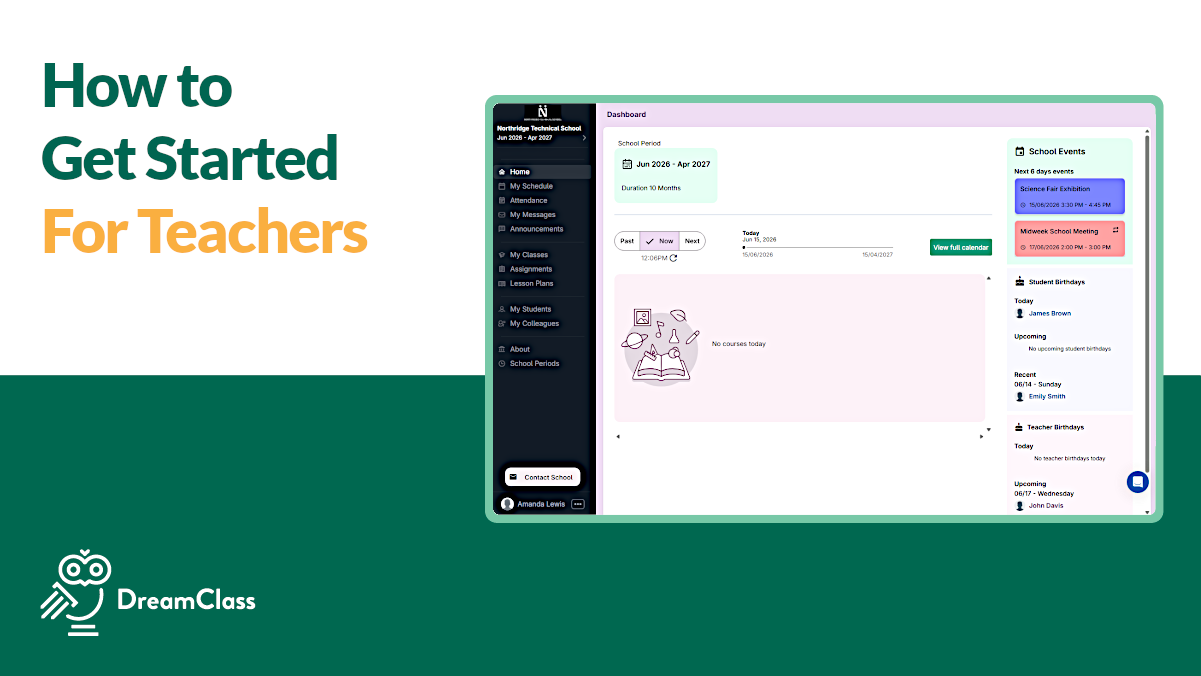
Once logged in, teachers land on a clean home dashboard, designed for daily use. From here, they can instantly see:
- Today’s lessons and upcoming classes
- Past and future courses
- School events
- Student and staff birthdays
The left-hand navigation keeps all core actions, one click away. That’s including schedule, attendance, classes, and messages. This is part of how school management software helps teachers keep their daily work in one place.
Teacher takeaway: You don’t need to hunt for information. Everything you use during the school day is easy to find, which helps DreamClass fit naturally into your routine.
How do teachers manage schedules and calendars?
Teachers can review their schedule in multiple ways depending on how they plan their time, using built-in scheduling and timetable tools:
- Daily or weekly navigation
- Monthly calendar view
- Lesson-focused views showing upcoming sessions at a glance
Events and lessons appear together, giving teachers a complete picture of their workload. Schedules can also be printed when needed.
Teacher benefit: Having one clear schedule helps you plan your day and avoid last-minute surprises, even when schedules change.
How does attendance tracking work in DreamClass?
Attendance tracking is designed to take seconds, not minutes. And that’s using the same system schools rely on for attendance management.
Teachers can simply:
- Open the attendance section
- Select the lesson or session
- Mark students as present, absent, late, or unspecified
Bulk actions allow teachers to mark all students at once and then adjust individual statuses as needed. Notes, such as how late a student arrived, can be added directly.
Teacher benefit: Attendance stays simple and consistent, so you can focus on your class instead of paperwork.
What can teachers do inside a class?
Each class has its own dedicated space where teachers can:
- View enrolled students
- Review attendance settings
- Post announcements
- Access class-specific tabs for grades, assignments, and materials
Everything related to the class lives in one place. As a result, teachers rely less on external tools, and schools maintain cleaner, more consistent records.
How do teachers enter and manage grades?
The gradebook mirrors how teachers already think about grading and reflects the practical benefits of modern gradebook software.
So, teachers can:
- Click directly into grade cells to enter scores
- Organize assessments into folders such as terms, quizzes, or exams
- Add new grades using simple add actions
Folder averages and final grades are calculated automatically, based on the grading structure. This reduces manual errors, prevents last-minute grade disputes, and cuts down on follow-up questions from families at the end of each term.
Teacher benefit: Automatic calculations save time and help reduce grading mistakes, especially during busy weeks.
How are assignments, performance, and report comments handled?
From the class area, teachers can:
- Create and review assignments
- Track performance across assessments
- Add narrative comments for report cards
Final grades and performance data are always visible, helping teachers prepare evaluations without last-minute scrambling. Administrators benefit from consistent, professional reporting across the school.
How do teachers share learning materials?
This is equally important, due to its time-consuming nature. Teachers can upload:
- Assignment attachments
- Class resources
- Internal notes for lessons
Materials stay connected to the class, ensuring students and teachers always reference the correct content. This approach reduces confusion and limits the need for email attachments or separate storage tools.
How does communication work with students and families?
DreamClass makes communication practical, not disruptive, with built-in tools similar to dedicated school communication features.
Teachers can:
- View and search students by name
- Filter students using tags, such as, say, international students
- Contact students directly via email
If your school works with guardians, teachers can also view and contact families from the same area. Colleagues are listed as well, making internal communication just as simple.
Can teachers manage their own account settings?
Teachers can manage their own profiles by:
- Updating personal information
- Changing usernames
- Resetting passwords
This autonomy reduces routine admin requests and keeps accounts secure.
What does all this mean for schools evaluating DreamClass?
For teachers, the biggest concern with any new system is whether it will actually make daily work easier or add more steps.
This walkthrough highlights what matters most for growing schools:
- No technical setup required for teachers
- Clear daily workflows
- Fast attendance and grading
- Centralized communication and records
DreamClass is designed so teachers can focus on teaching, while leadership retains visibility, consistency, and control. Schools evaluating platforms often compare this experience to traditional student information systems that require heavier setup and training.
Stellar Support and Product
The features are user friendly and easy to learn. The design of the app is intuitive, making it an efficient system in organizing a large amount of student information.
Assistant Program Director of Educational Support Services Education management
SImple, easy, and affordable!
I like how easy it is to use and navigate. Clean interface and great functionality.
Director and Owner Education management
Next steps
Teachers can begin using DreamClass immediately after login. School leaders can onboard staff with confidence, knowing the system supports real classroom workflows.
If you’re still evaluating DreamClass, this guide reflects the exact experience your teachers will have from day one.
Related Reads
If you’d like more context on how DreamClass supports teachers and schools, these guides may be helpful:
FAQ
Frequently Asked Questions
Is DreamClass easy for teachers to learn?
Yes. Most teachers begin using DreamClass immediately after logging in, without formal training sessions.
Do teachers need technical skills to use DreamClass?
No. DreamClass is designed around everyday classroom workflows, rather than technical configuration.
Can DreamClass work for new or small schools?
Yes. DreamClass is commonly used by new private schools, vocational schools, and small teams transitioning away from spreadsheets.
Can families access grades and updates?
Yes. Schools can enable family access so parents and guardians can view grades, schedules and updates.