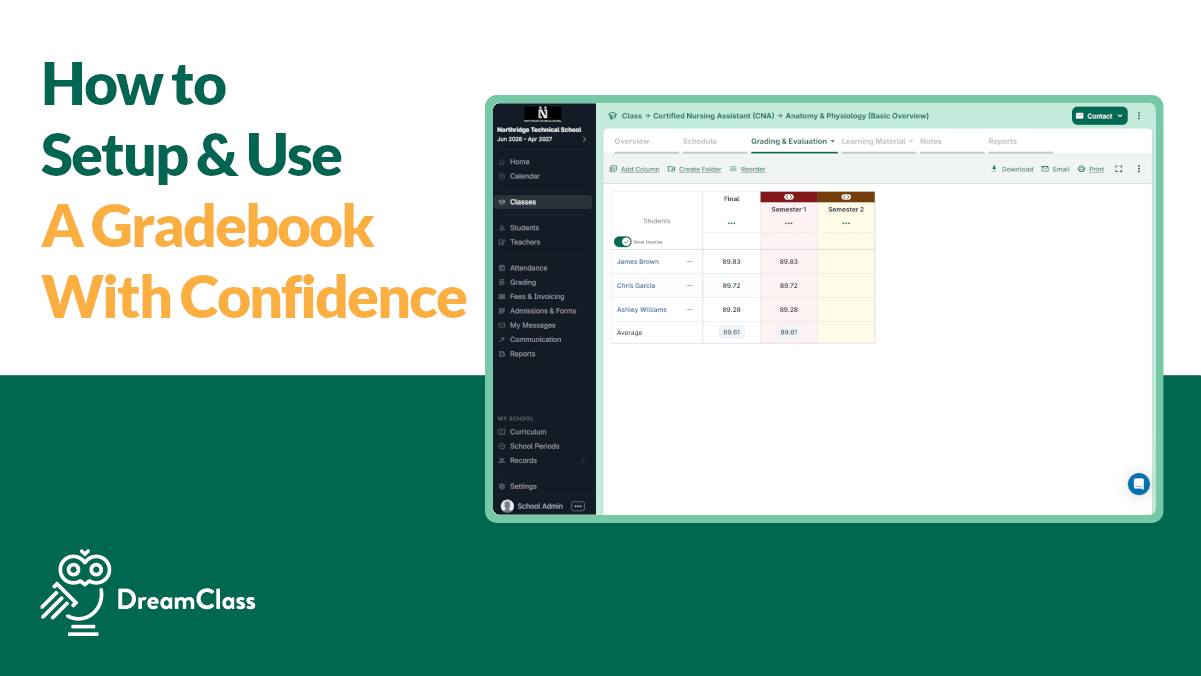
The DreamClass gradebook gives schools one clear place to set up grading, enter scores, calculate results, and move term results into official records. For lean school teams, that cuts down messy spreadsheets, keeps grading rules visible, and it even makes report card season feel much less stressful.
Why does the DreamClass gradebook matter for growing schools?
For private schools, new K-12 founders, and homeschools, even training academies, grading often starts in a simple way. One teacher uses a spreadsheet. Another keeps notes elsewhere. Then term-end arrives, and everyone has to reconcile grades, averages, and report card details. And that’s where the process starts to break.
The DreamClass gradebook helps by putting daily grading and official term results into one connected workflow. Instead of chasing scattered records, your team can work in one place, check the setup early and keep the final result aligned with what happened in class.
This is even more important for schools with small teams. When one person wears five hats, clean systems are not a luxury. They’re how the school stays organized.
What can you do inside the DreamClass gradebook?
Before we get into setup, it helps to see the gradebook the way a busy school leader would see it. You want a practical workspace, not a theory lesson. The value comes from getting grades entered quickly, keeping categories clear, and turning that work into report-ready results, without the extra cleanup that often comes with gradebook software.
Inside the DreamClass gradebook, schools can handle the core parts of the grading process in one flow:
- Create folders for grading categories or grading periods
- Add columns for quizzes, projects, homework, participation, or tests
- Choose percentage grades or point grades
- Enter grades by student or in a faster class-wide method
- Adjust weights that affect final grade calculations
- Copy teacher gradebook results into final term grades
- Display grades as numbers, letters, or text labels
That mix is what makes the setup practical. It supports day-to-day teaching, and it also supports the formal side of school operations. In other words, teachers can work naturally, while admins still get cleaner records for report cards, transcripts, and broader academic management.
How do you open the DreamClass teacher gradebook?
Go to Classes, open the class you want, and then choose the course inside that class. From there, open Grading and Evaluation and select the teacher gradebook.
This is the main grading workspace. It’s where teachers build the structure for the year or term and where they enter scores over time. Once you see it that way, the screen becomes much easier to understand.
A simple mental model helps here:
- A folder is a category or grouping of grades
- A column is one specific graded item
- And a cell is the student’s score for that item
That structure sounds basic, yet it removes a lot of confusion. Staff can understand the layout quickly, which is exactly what smaller schools usually need.
What is a folder in the DreamClass gradebook?
A folder is a family of grades. It groups related scores together so the gradebook stays readable and consistent.
For example, you might create folders for Classwork, Projects, Quarter 1, or Semester 1. The right structure depends on how your school grades, but the idea stays the same. A folder keeps similar grades together.
That goes to say, gradebooks get crowded fast. A clean folder structure gives teachers a better view of student performance and gives admins a better chance of spotting setup mistakes early.
As the gradebook grows during the term, DreamClass also lets you fold and unfold folders. This helps teachers focus on the current grading period, without losing the overall structure. You can also clone a folder, which is useful when one quarter or term follows the same grading setup as the previous one.
How do you add columns in the DreamClass gradebook?
Once the folders are ready, the next step is adding the actual grade items. This is where the gradebook starts to reflect real classroom work. If your team names columns clearly from the start, the whole system becomes easier to manage later, especially when parents, admins, or teachers need to review what each score means.
A column is a single graded item, such as:
- Quiz 1
- Homework 2
- Participation Week 1
- Midterm Test
- Project: Solar System
Each column belongs inside a parent folder. That folder might be a grading category, such as Classwork, or a grading period, such as Quarter 1. After naming the column, you choose the grading type.
This is also where you need consistency. A school that uses clear naming from day one, usually spends less time explaining grades later. That is a small habit, but it pays off at report card time.
Should you use percentage grades or point grades in the DreamClass gradebook?
DreamClass supports both percentage grades and point grades, which gives schools more flexibility. The best choice depends on how the assignment is scored and how your grading policy works.
Use percentage grades when the score is based on a 0 to 100 scale. Use point grades when an item has a specific point total, such as 70 points or 20 points. The key is to keep the method consistent with the assignment itself.
That sounds obvious, but this is where many gradebook errors start. A school may set up the right column name and the wrong grading type. Then the calculations look odd later. Because of that, it’s worth checking the grading type at setup, not after the term is half over.
How do you enter grades quickly in the DreamClass gradebook?
Grade entry should feel simple. If it doesn’t, teachers avoid it, delay it, or work around it. Then the system loses value. DreamClass helps by allowing direct entry into the gradebook and by supporting faster ways to fill grades when needed.
You can enter one score by clicking a student cell and typing the grade, or use a quick-fill style method when the same mark applies to the full class or when you need to move through the roster quickly.
That flexibility is useful when some of these classrooms are messy. Sometimes one student needs one score. Sometimes the whole class gets the same completion grade. A useful gradebook has to support both situations, without slowing the teacher down.
How do weights affect the final grade in the DreamClass gradebook?
Weights determine how much each column contributes to the final result. This is one of the most important parts of the DreamClass gradebook, because the gradebook can look neat and still calculate the wrong result, if the weights are off.
For example, a major project may deserve more influence than one participation score. In that case, you would check the weight section and adjust the values so the final grade matches the school’s grading policy.
The helpful part is that DreamClass keeps this editable. If you realize a column was set up incorrectly, you can update the grading method, revise the weight, or fix the configuration before the term closes. That saves schools from one of the most frustrating grading problems, which is discovering too late that the grade math does not match the policy.
How do you move from the DreamClass teacher gradebook to final grades?
This is where the workflow becomes especially useful for schools that need cleaner records. The teacher gradebook is the working space. Final grades are the official term results. Those two areas are connected, but they aren’t the same thing.
In Grading and Evaluation, the section called terms and final grades is where schools copy the results from the teacher gradebook into the official term record. That final term result is what appears in formal school documents.
The easiest way to think about it is this:
- teacher gradebook is where teachers work during the term
- terms and final grades is where the official term result is stored
That distinction gives schools more control. Teachers can work in a flexible grading area, while admins still keep a clear official record for report cards and transcripts.
How do letter grades and grade mapping work in the DreamClass gradebook?
Some schools want to show numbers. Others want letters. Others need text labels, such as Pass or Excellent. DreamClass supports all three, which schools serving different grade levels or using different reporting styles can use.
The display format depends on the course’s grade mapping, which is closely tied to the school’s gradebook scale. In simple terms, grade mapping tells DreamClass how to convert a numeric result into the format the school wants to show on report cards or transcripts.
For example, a course could convert a high numeric score into A+. Another course could convert a passing percentage into a text result, such as Pass. Once the course is tied to the right mapping, DreamClass knows how to display the result correctly.
That’s because schools don’t all grade the same way. A flexible system has to support the school’s model, not force every school into one model.
What is the easiest way to avoid DreamClass gradebook mistakes?
Most gradebook issues start long before anyone prints a report card. They usually start during setup. A folder gets a vague name, a point-based assignment is entered as a percentage. Or a weight is skipped. Then, weeks later, the school has to unwind the problem.
A safer setup process is simple, repeatable, and easy for every teacher to follow:
- Keep folder names clear
- Keep column names specific
- Check grading type before entering scores
- Review weights early in the term
- Test one course from grade entry to final grade
- Confirm grade mapping before report cards are shared
These checks do not take long. Still, they prevent a lot of cleanup. For smaller schools, that is the real win. You don’t need a complicated system. You need a reliable routine.
What does a simple DreamClass gradebook workflow look like?
When teams are short on time, they need a process that’s easy to repeat. That’s true for a new private school, a growing homeschool, or a small admin office with only one or two people handling academic records. A repeatable workflow makes staff training easier and keeps grading more consistent across courses.
A simple workflow in the DreamClass gradebook looks like this:
- Open the class and then the course.
- Go to Grading and Evaluation.
- Open the teacher gradebook.
- Create folders for grading categories or grading periods.
- Add columns for each graded item.
- Choose percentages or points for each column.
- Enter grades by student or with a faster fill method.
- Review weights before the term ends.
- Copy results into terms and final grades.
- Confirm grade mapping for report cards or transcripts.
This workflow follows the way schools actually grade. It starts with setup, moves into daily use, and ends with official results. Nothing here feels extra. That’s why it’s practical.
Who benefits most from the DreamClass gradebook?
The DreamClass gradebook is most useful for schools that want structure without adding unnecessary complexity. That’s also the reason why it fits several DreamClass audiences especially well.
It works well for private school admins who need one place to track grades, support student progress tracking, and keep final records tidy. It also fits new school founders who are replacing spreadsheets and paper processes. In the same way, it supports training schools that want a professional grading workflow without heavy enterprise software.
For homeschool collectives and small alternative programs, the value is similar. The school still needs clear progress records, official-looking summaries, and a way to keep teachers and families aligned. The gradebook helps turn day-to-day teaching activity into records the school can trust.
Why is the DreamClass gradebook useful for report cards and transcripts?
Grades only become truly useful when they move cleanly into official records. That’s why you really need the connection between daily grade entry and final term grades.
DreamClass supports that connection by separating the teacher work area from the official term grade area. Teachers can manage ongoing grading in the teacher gradebook. Then, when the term closes, the school can copy results into final grades and use them in report cards, transcripts, and smoother report generation.
That structure reduces errors and builds confidence. Instead of rebuilding grades at the end of term, your team works from a process that already points toward the final record.
Why is DreamClass a practical choice for grade management?
A gradebook should make school operations calmer, not heavier. That’s the strongest reason to use DreamClass for grading. It gives teachers a clear place to work, helps admins keep final records cleaner. And it makes the path from classwork to official documents much easier to follow. Especially for teams looking for practical tools for teachers.
For smaller schools, that kind of clarity saves time and reduces confusion. Not to mention, it helps everyone trust the final grade more.
Book a free demo?
If your team wants a better way to organize grades, calculate results, or prepare final records, DreamClass gives you a simpler path. You can set up categories, track scores, and move grades into official records, without juggling spreadsheets across the term.
The strongest reason to book a demo is simple. You can see how the DreamClass gradebook works in a real school workflow, not just in theory. That helps small teams decide faster, since they can picture folders, columns, final grades, and report card steps in one place.
Related Reads
FAQ
Frequently Asked Questions
Can teachers enter grades directly in DreamClass?
Yes. Teachers can enter grades directly in the teacher gradebook for the courses they manage.
Can DreamClass use both percentages and point grades?
Yes. Each column can use percentage grading or point grading, depending on the assignment.
Can I show letter grades instead of numbers?
Yes. DreamClass supports grade mapping, so schools can display letters, numbers, or text labels.
Do final grades appear on report cards automatically?
Final grades need to be copied into terms and final grades, so they become the official term result.
Can I reuse the same structure next term?
Yes. DreamClass lets you clone folders, which helps schools repeat the same grading setup faster.
What is the difference between the teacher gradebook and final grades?
The teacher gradebook is the working area for daily grading. Final grades are the official term results used for report cards and transcripts.
What should I check before sharing report cards?
Check the grading type, weight settings, final-grade copy step, and grade mapping. Those four checks catch most setup issues before records go out.
What’s the easiest way to organize grades and attendance for a small school?
The easiest way to organize grades and attendance for a small school is a unified gradebook and attendance system like DreamClass, where staff record scores and daily attendance in one place, instead of separate spreadsheets.