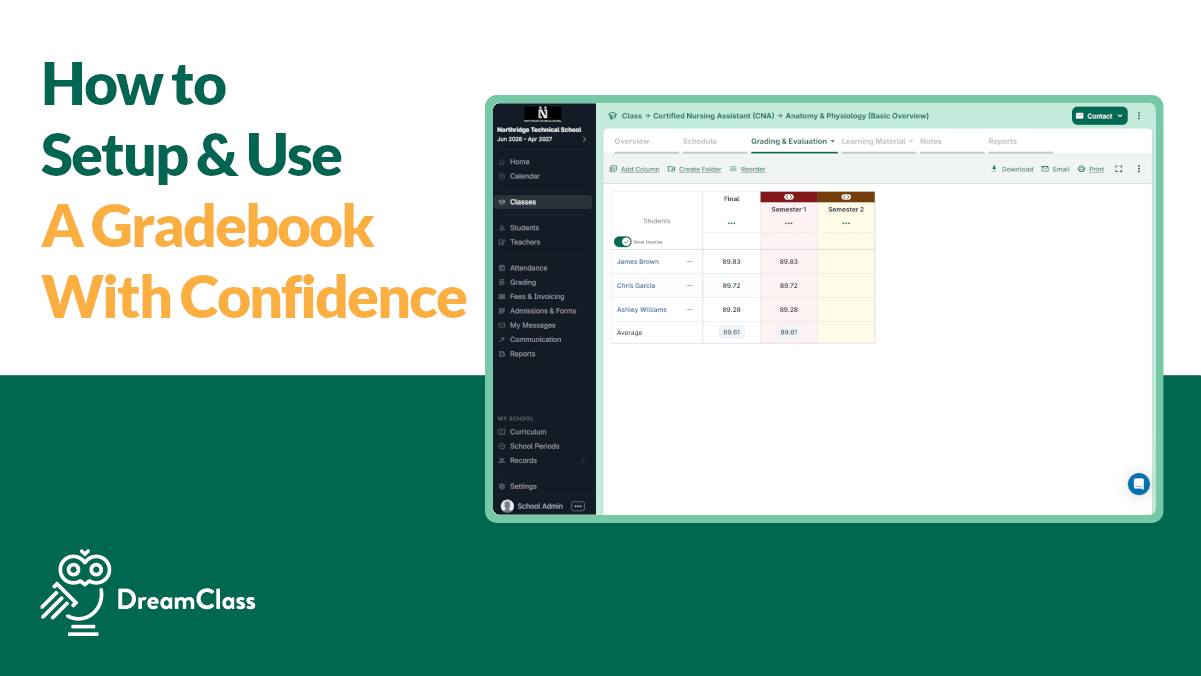
A shared gradebook fixes the one problem every growing hybrid homeschool co-op runs into. Teachers are keeping grades in their own spreadsheets, with nothing tying the pieces together. DreamClass solves that for structured homeschool operations by giving every teacher a gradebook that feeds directly into report cards, so a family’s grades live in one place, instead of scattered across a dozen files. A gradebook for a hybrid homeschool program, it is, then!
Setup takes five steps. There’s also one setting almost every co-op misses the first time they issue report cards. The toggle that actually connects a class’s grades to the report card. We’ll flag it clearly when we get there.
Key takeaways
- A shared gradebook for a hybrid homeschool program replaces scattered teacher spreadsheets, putting every subject’s grades in one place.
- Weighting is optional. Classes where every assignment counts equally, can just use a simple average.
- A grade being entered doesn’t mean it’s on the report card. Each class needs its own display toggle switched on first.
- Letting guardians log in for grades and report cards on their own cuts down administrator requests.
- Scores aren’t locked in. A mistake from last week can be corrected without waiting for the next grading cycle.
In this guide:
- What the gradebook contains
- Before you start your gradebook setup
- Step 1: Create a grade folder
- Step 2: Add grading columns
- Step 3: Assign weights (or use a simple average)
- Step 4: Choose how grades display to families
- Step 5: Enter scores in your gradebook as you go
- Watch the video
- Connect your gradebook to the report card
- A shared gradebook for a hybrid homeschool program — And why it matters
- Related reads
- FAQ
What the gradebook contains
A DreamClass gradebook comes down to three parts: folders, columns, and weights.
- Grade folder: Groups related grading items, like a term or a subject (Quarter 1, or Science Assessments).
- Grade columns: Individual items inside a folder, like Quiz 1 or Participation. Columns hold either point grades (18/20) or numeric percentages on a 0-100, 0-4, or 0-10 scale.
- Weights: How much each column counts toward the final grade.
Set these up right the first time. DreamClass calculates final grades automatically as scores come in, and every step from here builds on this same folder-and-column structure, so restructuring later means redoing work you already did once.

Before you start your Gradebook for a Hybrid Homeschool Program
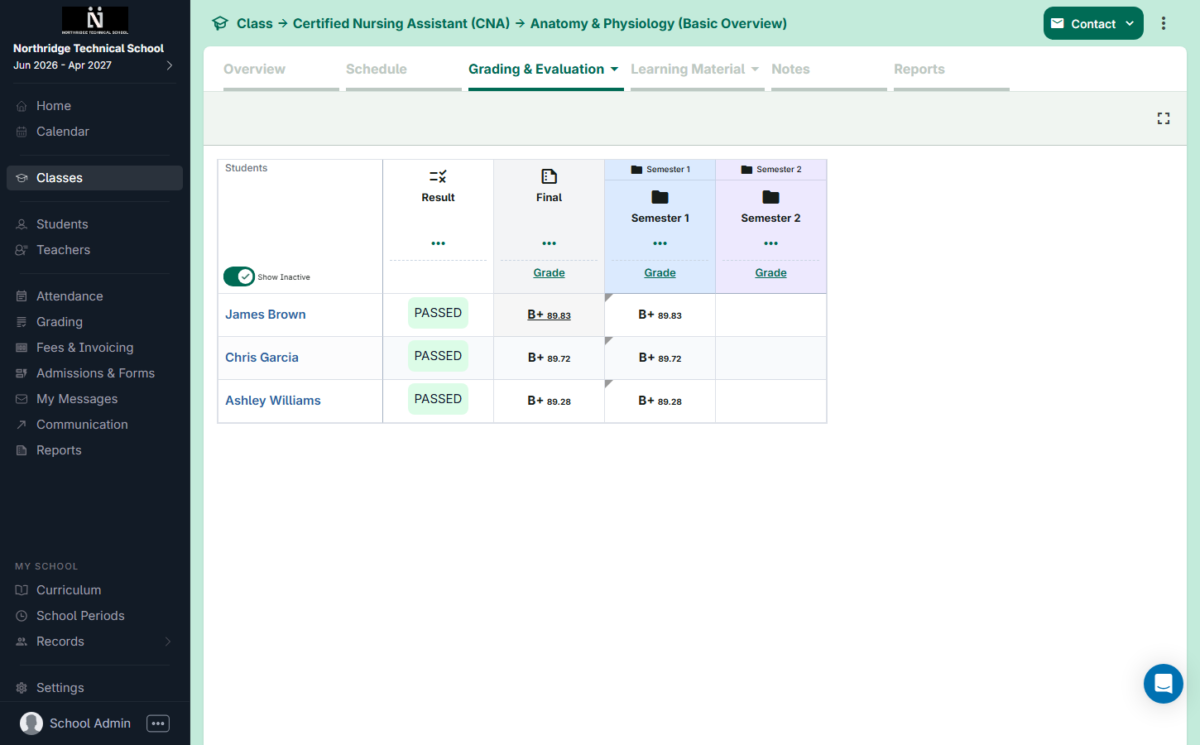
Two things need to be true before you touch the gradebook. Your classes or subjects need to already exist in DreamClass, since a gradebook lives inside a specific class. And the correct school period or term needs to be active, so new folders land where they belong.
From there, decide who builds what. You can set up the folder structure yourself and hand it to teachers, or let each teacher build their own. DreamClass supports both admin-managed and teacher-managed gradebooks, which is of paramount importance in a hybrid program, where volunteer parents and part-time instructors need different levels of hand-holding.
Step 1: Create a grade folder
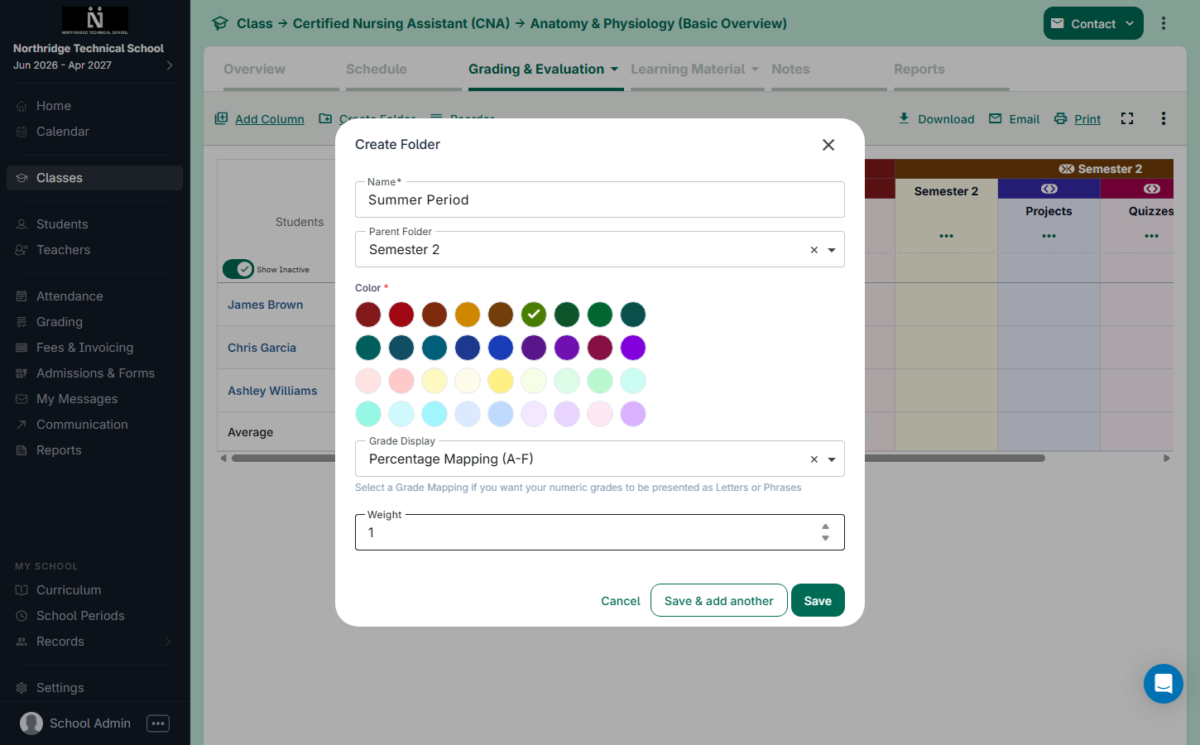
Create one grade folder per term (Quarter 1, Quarter 2) or per subject, depending on how your teachers already track progress. Add a subfolder for subjects with frequent grading, like weekly quizzes, so those items don’t clutter the main folder.
Match your folder names to your syllabus. Families checking multiple subjects across multiple teachers will find a specific grade faster if the folder names already look familiar. Especially in a co-op where each subject has its own volunteer or part-time instructor keeping a different naming habit.
Step 2: Add grading columns
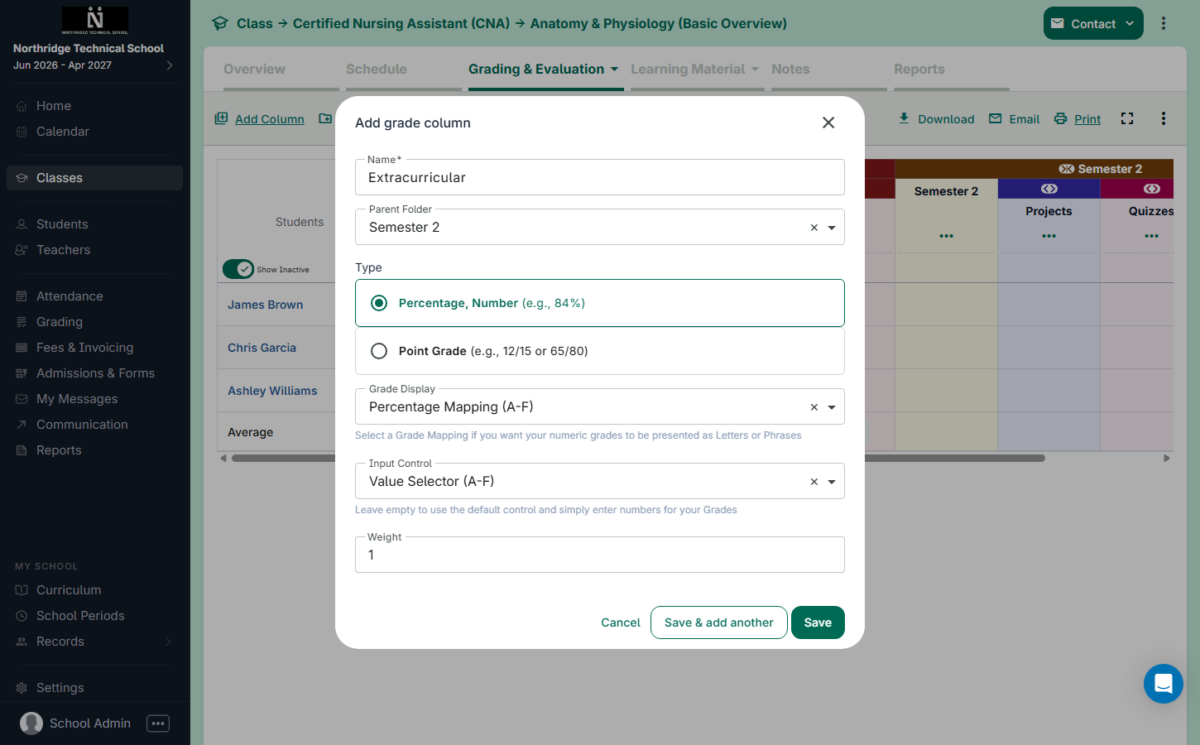
Add a column for every graded item: quizzes, assignments, participation. Name each one specifically, “Quiz 3: Chapter 5,” not “Test 1.” In a hybrid program, parents and co-teaching volunteers are reading the gradebook without a teacher’s context, so a vague name costs them time a specific one wouldn’t.
Pick a column type that matches how the teacher already grades: point grades for anything scored out of a fixed total, numeric percentages for anything on a 0-100, 0-4, or 0-10 scale. Get this wrong and you’re doing manual conversions later.
Step 3: Assign weights (or use a simple average)
Decide how much each column counts. A typical split might be Quizzes 10%, Homework 10%, Participation 5%, Midterm 25%, Final 50%. Skip weighting entirely and DreamClass averages every column evenly, instead.
Simple averages work for enrichment or elective classes, where one assignment matters as much as the next. Core academic subjects usually need weighting instead, since a final exam should outweigh a single homework grade. Either way, the gradebook calculator does the math, so no one’s computing weighted averages by hand.
Step 4: Choose how grades display to families
Pick one grade display for the whole co-op: percent only, percent with a letter, or letter only, based on whichever grading scale your co-op already runs on.
Most hybrid programs land on percent-plus-letter, since some families expect a traditional report card and others read raw scores more easily. Whatever you choose, apply it consistently. Letting individual teachers pick their own mapping means families with kids in multiple classes end up comparing apples to oranges on report card day.
- Percent only
- Percent with a letter grade
- Letter grade only
Step 5: Enter scores in your gradebook as you go
Enter scores in your gradebook for a hybrid homeschool program as assignments get graded. DreamClass recalculates the final grade the moment a new score lands, and bulk entry lets a teacher score an entire class in one pass, instead of opening each student’s profile individually, which matters most in a co-op where one volunteer instructor is grading twenty students’ worth of quizzes between other responsibilities.
Entered something wrong? Gradebooks support retrospective editing. A teacher can fix a score from three weeks ago without waiting for the next grading period.
▶️ Watch the video:
0:01 Hi there, this is Lida, and this video is about grading. If you would like to, uh, learn how to use the gradebook in DreamClass, let’s break this in three simple steps.
0:12 The grading is, um, and can be found into your classes by selecting any of the assigned courses, for example. This particular group is called the first grade class, and we have Algebra One LA math.
0:25 Those purple boxes are called the courses. It’s essentially what the students are learning. So if you have some registered students into any of your class, in the tab grading and evaluation you have the teacher gradebook.
0:41 So when you first set up your gradebook, you were presented with some options. You can either configure it from scratch, which is the easiest one we’re going to use in this video so you can see the options.
0:54 So the first thing is, you’re going to learn together with me what is a folder. So a folder is nothing more than a category of grades.
1:03 That means I can choose any color that I want, and in that folder I will put different types of Let’s add a column now.
1:13 When you add a column in a folder, you give it a name, so test on X, Y, Z. And you can choose between a percentage or a point grade.
1:24 Essentially the difference is that when you’re choosing to, um, grade your students in percentages, you just put a hundred percent and the majority of the class took a hundred percent.
1:36 Let’s add another column. When I add columns, I can choose the three dots underneath the folder that I want to put this column into, or I can select add column from here.
1:47 I can name it “project”. so my students did a project on, you can put the title be creative here. And the parent folder is the category of grades.
2:01 Now in this example, I can use the point grade system, because the maximum point that the students can take in this is, uh, 70%.
2:10 So that counts as 0.7. If I choose another methodology of grading, previously in the previous step, I used quick fill, where the entire list of students get the same grade.
2:23 Here I can choose the grade, which essentially opens up a window and you can maneuver with your keyboard by typing different grades.
2:31 Say that’s it. No, because you see that this is 0.7, let’s not be non-mathematical if you would like to change the weight of each column, just scroll down and go to the weight section.
2:44 So this is how the final grade of those students is calculated. Now, let’s see something amazing. As the weeks go by, you might be entering a love grade.
2:55 So you can fold folders in and unfold them. And this way, when you use trimesters or semesters, you can actually have all of the different grades within that folder.
3:06 Once you’re done, you can fold it, clone it, and you can do it. just say turn two or turn one and you can have a new folder where all of those settings will be saved.
3:18 Now this part is how to maneuver with the grade book. What is a folder? What is a column? And how am I able to grade a student?
3:25 Something very basic that I didn’t show before is what if I wanted to put one grade? Well, John Black, in this case, did a 5 on that test.
3:35 So you can just click that cell and put the grade. Another thing that it’s worth mentioning at this point is that, uh, when you would like to, um, another thing worth mentioning here is that if you would like to add, um, final grades.
3:52 In Drinkless Right Now the final grades is what we consider the final grade that a student will have in an official document.
3:59 If you didn’t know y’all are. Official documents are called report cards and transcripts. So under grading and evaluation, there’s a section called terms and final grades.
4:08 In that section, essentially, you can copy and paste from your teacher grade book. Teacher grade book is where teachers put all the grades.
4:18 And the terms and final grades is where the teachers lock that for quarter three. I will be copying from the teacher grade book and whatever grade I’ve put in there.
4:29 Let me. use this as an example. And the system just converted all of these options here in port 3. Going back now into the teach grade book, you might have noticed that the category of grades needs a little bit fixing.
4:45 Previously, I added that, uh, the maximum is a hundred percent. So that student got 130, which was an interesting topic to see.
4:55 But that speaks of the system’s customization. So if you make a mistake, and if you then want to change that column, you totally can and you can switch back and forth between percentage and, um, percentage points and averages.
5:08 So going back to the final grade, uh, Let’s clear that out and then let’s click the three dots to grade all the students now very quickly by just typing.
5:20 The same method. Those now elements are going to show in the report card. Last part of this video is going to be what do we need to do if we want to show letters or words for that particular course in that student’s John Black report card.
5:38 So in John Black’s report card, you see that he has 43, 100 percent. Um, because that what we chose to show.
5:46 In, in the different schools and colleges that we support, sometimes they want to show letter grades. Now according to the report card settings that you have set up, there is a section in DreamClass that allows you to display grades as text.
6:00 You can do both numerically and non-numerical grades. So both of those options are supported. And if you noticed, the system converted 100 to a plus.
6:10 Where does that come from? Now that one is a bit tricky, but very simple if I guide you. If you go to the grading menu, in the grading menu, in the terms and results is where you can see all of the different courses that you have and the grade mapping that follows them.
6:26 Now math, in that particular example, if we type the word math, Math for first graders is using a mapping called Grade Point Average.
6:36 Now where does that come from? If you go to the settings of your school, In the grade book, there is a component called the Grade Point Average.
6:44 So essentially it’s like saying to DreamClass when you see 100 make it a plus. It’s very popular for universities and very popular for high schools.
6:53 If you’re not and you want something simpler, our system comes with templates. So if you would like to use something like A, B, C, D, E, F, G without A, A+, A-, You can use that and you can also play with the words.
7:08 So let’s say everything above 70% you want to say the word pass or the word excellent. By changing that, essentially, all your students’ grades when they get a hundred we will convert it into excel on or A plus minus.
7:22 If you need any help, please let me know. This video was long, but it has all the different steps on how we can have a grade book and how we can make sure that those grades are actually going to be used for the final grades, which is what report cards and the transcript show.
7:39 Let me know if you have any questions. If you do, please email us at support at DreamClass.io. We’d love to hear from you.
7:45 Bye.
Connect Your Gradebook for a Hybrid Homeschool Program to the Report Card
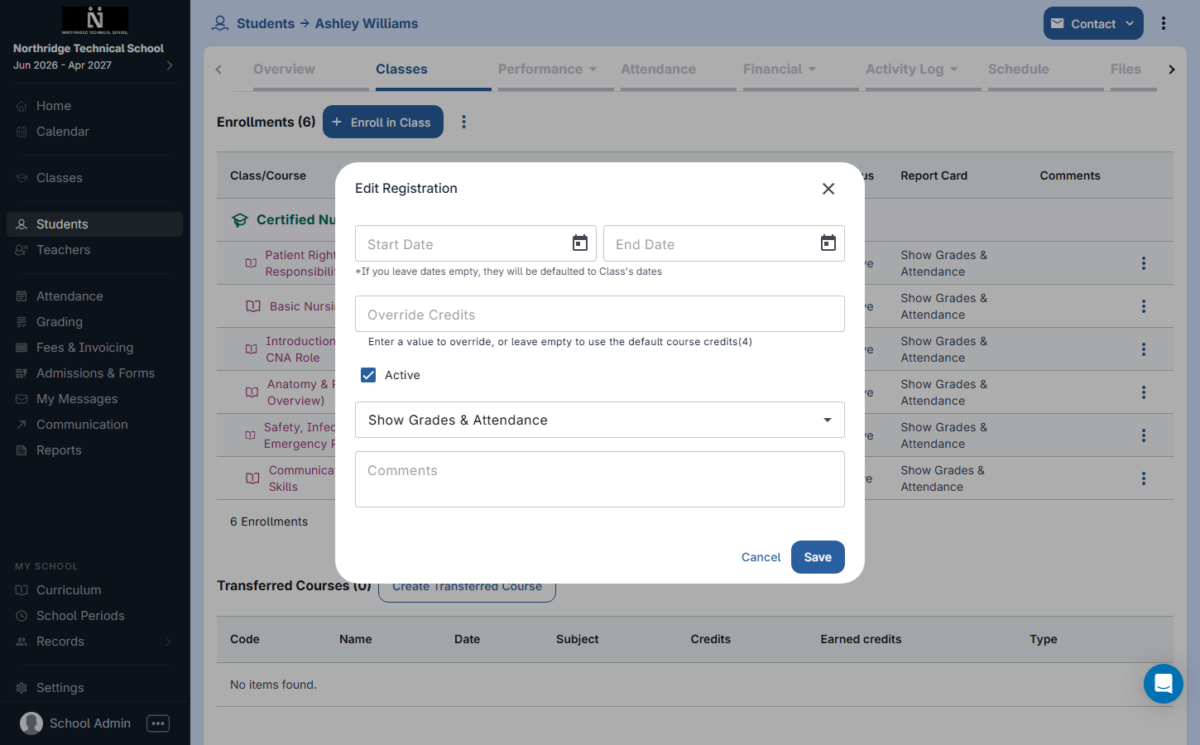
Now, there’s a part that trips up almost every co-op the first time they issue report cards. Εntering a grade doesn’t put it on the report card automatically. Each class has its own toggle controlling whether it shows up there, and that toggle has to be switched on before you generate report cards. Miss it, and a fully graded class shows up as a blank space on the report card, even though every score is sitting right there in the gradebook.
Treat this as a checklist, not a given. Before generating report cards each term:
- Open the report card settings for the term.
- Confirm every class you want included has its toggle switched on.
- Generate the report card and review it before sending it to families.
Once report cards are finalized, turn on parent portal access so guardians can log in and download their own copies instead of you sending them out one family at a time. That single setting change is what actually cuts down the report-card-week email pile.
A shared gradebook for a hybrid homeschool program — And why it matters
The setup we just described is what gets a hybrid co-op out of the spreadsheet-chasing business. Before, an administrator fielding a parent’s question about algebra had to track down the right teacher and dig up their file. After implementing this new setup, administrators, teachers, and parents are all looking at the same numbers in the same place, current as of the last grade entered. See the difference?
And, guardians and students get their own portal view into grades and report cards too, which means most questions never reach the administrator’s inbox in the first place. This helps with both the workload distribution and with avoiding these cases of burnout that have become all that frequent and so hard to deal with.
User-Friendly and Efficient!
Parents are very glad to have real time access to their student’s grades! It has made a difference in the amount of students that have missing work. When my teachers enter in a zero, parents are able to see that and get it resolved quickly.
Assistant Principal / 4th & 5th grade teacher
Ready to see this running in your own co-op?
Book a free demo and walk through a gradebook for a hybrid homeschool program, report cards, and parent communication working together in one system, built for hybrid homeschool programs.
Related Reads
If you’re setting up other parts of your hybrid program in DreamClass, these guides cover what comes next:
FAQ
Frequently Asked Questions
Do grades automatically appear on the report card once entered?
No. Each class has its own option controlling whether it shows on the report card, and that option has to be switched on before you generate report cards, even when every grade is already entered.
Can I use a simple average instead of weighting grades?
Yes. Skip weighting and DreamClass averages every column evenly, which works well for enrichment or elective classes where each assignment carries about the same importance.
Can scores be corrected after they’ve already been entered?
Yes. Gradebooks support retrospective editing, so a teacher can fix an entry from a previous week without waiting for the next grading period.
Can parents see grades and report cards themselves?
Yes. Turn on parent portal access and guardians can log in, view grades, and download report cards directly, instead of requesting them from the administrator every time.