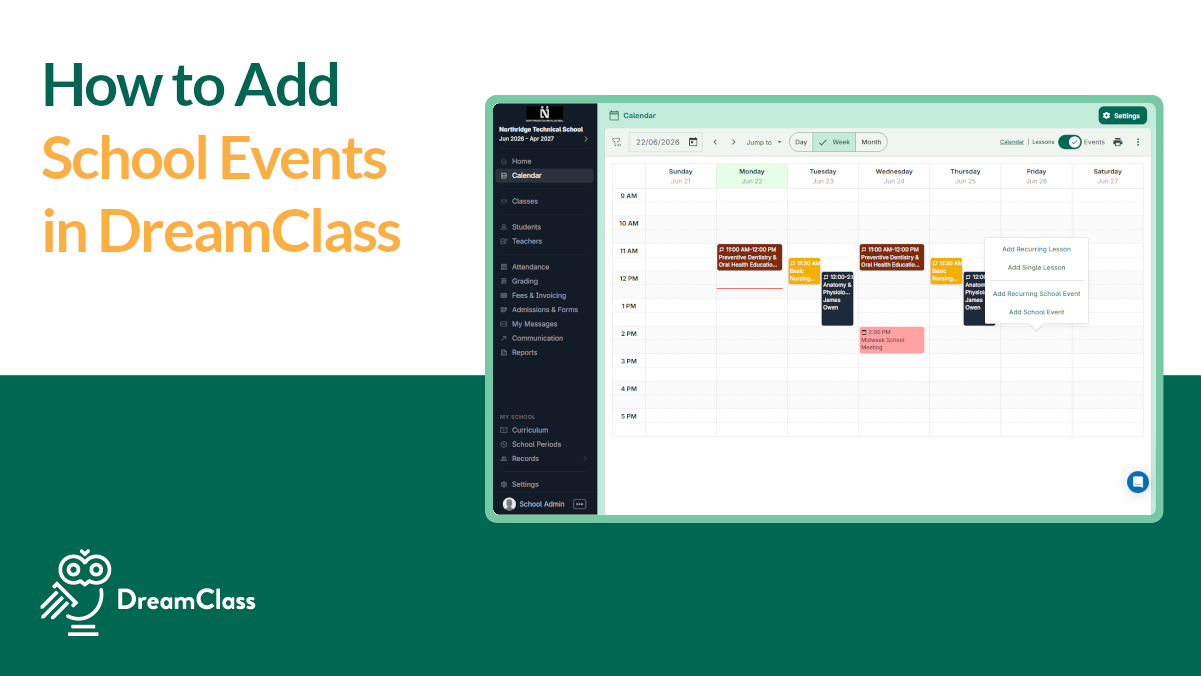
How to add school events in DreamClass is simple. Open the calendar, choose the date, and add a school event when the item is not tied to a class. Use a recurring event when it repeats. Use a lesson only for teaching time connected to a course.
That distinction keeps your DreamClass school calendar easier to read. It also helps families, teachers, and admins see what is happening without extra back-and-forth. For growing schools, that small habit saves real time.
Seamless Transition & Support with DreamClass
Having the school calendar, student financials, attendance, assignments, SIS and applications all in one place is the greatest benefit. We had 4 different platforms prior to DreamClass and are now able to function as a school in one. This has been extremely effective and efficient.
SLS Operations DirectorEducation management
Why add a school event instead of a lesson in DreamClass?
Add a school event when something belongs on the calendar but does not belong to one class. That is the simplest rule, and it prevents a lot of confusion later.
In practice, schools use events for moments that shape the day, even though they are not part of instruction. Common examples include:
- parent conference days
- orientation days
- pizza days
- school briefings
- assemblies
- one-off community activities
By contrast, lessons belong to classes and courses. So, if the item is instructional, create a lesson. If it’s broader than one class, create a school event.
How do you add school events in DreamClass step-by-step?
The workflow is straightforward once you know what to look for. More importantly, it stays easy to repeat across your team, which matters when different staff members handle scheduling at different times of the year.
1. Open the calendar
First, go to the calendar and choose the day or time period where you want the event to appear. This gives you a quick view of what is already scheduled, so you can place the event cleanly.
2. Choose the right event type
Next, decide whether the event happens once or repeats.
- Choose a school event for a one-time event.
- Choose a recurring event if it happens every week or follows a repeat pattern.
This is the key step when you add recurring school events in DreamClass. If the event repeats, don’t rebuild it manually every time.
3. Name the event clearly
Then, enter a name that staff, families, and students can understand at a glance. Clear labels reduce follow-up questions and make the calendar more useful, day-to-day.
Simple names usually work best:
- Parent Conference Day
- Orientation Day
- Pizza Day
- Staff Briefing
- School Assembly
A clear label improves your school event calendar in DreamClass, because people can understand the purpose of the event without opening extra details.
4. Set the start and end time
After that, choose when the event starts and when it ends. For example, you might set the event from 8:00 a.m. to later in the day, so users can immediately see how much of the schedule it affects.
This is more important than you might think. A proper time range shows the full event window instead of leaving staff and families to guess.
5. Save the event
Finally, save the entry. Once saved, the event appears on the calendar from start to finish. As a result, users can quickly see that something outside the normal class flow is happening that day.
That is the full process for how to add school events in DreamClass.
What kinds of school events should you manage in the DreamClass calendar?
Most schools use calendar events for anything that affects the day, but doesn’t belong inside one teacher’s lesson schedule. That’s what keeps the calendar practical instead of cluttered.
Good examples include:
- parent teacher conferences
- orientation sessions
- open house events
- school celebrations
- community meetings
- recurring admin reminders
- special school-wide announcements
And, because DreamClass handles scheduling and school event planning in the same environment, your team does not need one tool for class time and another for general events. That keeps the school calendar easier to manage over time.
When should you use a recurring event instead of a recurring lesson?
This is where teams usually pause, and for good reason. On the surface, both items repeat. However, they serve different jobs.
Use a recurring event when the item repeats and is still a general school event. For example, a weekly parent information session, advisor check-in, or community lunch belongs here.
Use a recurring lesson when the repeated item is actual teaching time linked to a class or course.
A simple rule keeps the choice clear:
- Event means a calendar item for the wider school community.
- Lesson means scheduled teaching for a class.
Now, once your team follows that rule consistently, it becomes much easier to manage school calendar events without overlap, duplicate entries, or mixed expectations.
Why does this workflow matter for growing schools?
A clean calendar isn’t just an organizational win. It affects communication, planning, trust.
So, when events are added the right way, admins can post updates more clearly through communication tools, teachers can plan around interruptions using teacher workflows, families can see what is coming without another email chain. In other words, a small scheduling choice creates fewer problems later.
That matters across different school models. A private K-12 school may use events for conferences and assemblies. A smaller school may use them for family briefings. A homeschool collective may use them for co-op days and community updates. A vocational program may use them for orientation blocks, intake reminders, or school-wide notices. The workflow stays the same, even though the context changes.
Game-Changer for Private Schools
Lida is the best communicator and is always available to walk me through new processes. DreamClass has truly simplified our administrative tasks, allowing us to focus more on what matters most — our students and their spiritual growth. We highly recommend it to other small schools
Office managerPrimary secondary education
How does this help schools that have outgrown spreadsheets?
School staff usually feel calendar friction before they say it out loud. One team member adds a reminder in email. Another puts something on a paper calendar. A teacher mentions it in class. Parents hear about it late. Then everyone wastes time sorting out what should have been clear from the start.
That is why a shared calendar matters. When your event is visible in the same system that supports attendance, records, and day-to-day school workflows, the school runs with less friction. You’re not chasing details across tools. Instead, you’re keeping the whole school on the same page.
Final takeaway
If you’re learning how to add school events in DreamClass, remember one rule: Use events for general calendar items and, then, lessons for class instruction.
That one choice keeps your calendar easier to read, easier to maintain, and more useful for everyone who depends on it. It also supports a more organized school day, especially when your team is growing or moving away from spreadsheets.
When your school wants one place to manage scheduling, attendance, communication, records, and daily operations, school management software like DreamClass gives you a practical system that stays organized as you grow.So, do you want a simpler way to keep your school calendar clear and your team aligned? Review the onboarding process, explore pricing, or contact DreamClass to see how it fits your school.
Related Reads
FAQ
Frequently Asked Questions about how to add school events in DreamClass
Can I add an event that isn’t linked to a class?
Yes. That’s exactly what a school event is for. Use it for school-wide or general events that should appear on the calendar.
Can I create repeating school events in DreamClass?
Yes. If the event happens every week or follows a pattern, create a recurring event instead of rebuilding it each time.
What’s the difference between a school event and a lesson?
A school event is for general calendar items. A lesson is for scheduled teaching tied to a class or course.
What are good examples of events to add?
Parent conference days, orientation days, pizza days, assemblies, staff briefings, and other non-class activities, all fit well.
Why should schools use a shared event calendar?
A shared calendar helps admins, teachers, students, and families see the same schedule in one place. That improves clarity and cuts down on missed updates.