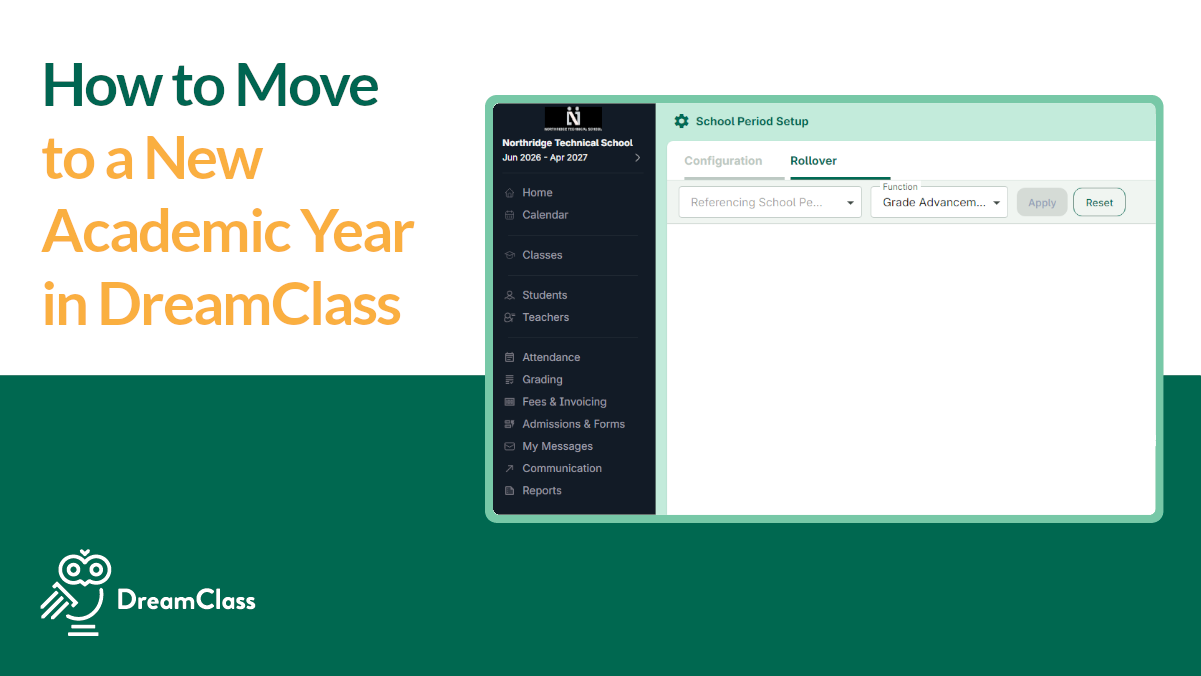
If you are setting up a new school period in DreamClass, rollover is the fastest way to move forward, without rebuilding your data from scratch. It lets you bring key records into the new period, keep your setup organized, and then update student levels where needed. For most schools, that means less manual work and fewer setup mistakes, which also means a smoother start to the year.
What is rollover in DreamClass?
Rollover in DreamClass is the process of transferring selected data from one school period into another. In practice, it helps schools carry forward the records they still need, instead of recreating them one by one.
This is important across the board, because year-end setup usually creates the same kind of pressure across different school types. A private school wants to avoid duplicate admin work. A new founder wants something simple and low risk. And a homeschool collective wants structure without extra complexity. Even a small training team wants continuity and cleaner records. Rollover speaks to all of those needs, because it reduces repeat work, while keeping the next period clean and usable.
What should you do before you start to rollover?
Before you start your rollover, make sure the new school period already exists and is selected. That step is easy to miss. However, it’s important to ascertain, because rollover sends data into the current destination period.
A safe starting flow looks like this:
- Go to Home.
- Open Settings or Period Settings.
- Open the Rollover tab.
- Select the previous period as the reference period.
- Confirm that you are working in the correct new period.
That short setup check can save you a lot of cleanup later. In other words, rollover works best when you slow down for one minute at the start, so you do not spend an hour fixing records in the wrong period.
How does Rollover transfer classes, students, and teachers?
Once you open the Rollover area and choose the reference period, DreamClass shows the data available to transfer. You don’t have to move everything at once. Instead, you can transfer only the records that belong in the new period.
That flexibility is one of the most useful parts of Rollover. Some schools keep the same staff and most of the same classes. Others keep only a portion of the student list. Because of that, selective transfer is usually safer than copying everything blindly.
How does Rollover transfer classes?
You can select the classes you want to carry into the new period. This is useful when your school keeps the same core structure, but still needs a clean start for the new year.
Class transfer may also preserve related teaching assignments and recurring schedule patterns. That means a class that met on the same days and times last year may keep that structure in the new period. For teams managing several classes at once, that can remove a surprising amount of setup work. It also connects naturally with scheduling and timetables when you need to fine-tune the calendar, after the transfer.
How does Rollover transfer students?
Rollover can transfer all students or only selected students. That is especially useful if some students continue, while others don’t. In some workflows, you can also filter by level and hide inactive students before transferring.
This selective approach works well across different types of school. A private school administrator may want a controlled move into the next year. A small private school founder may want only current active learners. A homeschool collective may want to keep records lean and easy to manage. A training team may want to move only the learners tied to the next intake or term. See where this is going?
OK. How about teachers? Can they be transferred, too?
How does Rollover transfer teachers?
You can also transfer all teachers or only selected teachers. That helps when your school keeps most of the same team but needs to leave out staff members who will not continue into the new period.
For schools trying to keep all staff records in one place, this also supports a cleaner handoff into teacher management. That way, you are not just copying names forward. You are preserving the working structure behind the new period.
How does Rollover transfer fees?
If your account setup includes fee management, Rollover may also let you transfer tuition fees. That can save time, since financial setup is often one of the most repetitive year-to-year tasks.
This part matters more than people expect. When a school forgets to rebuild fees correctly, the problem usually shows up later. Therefore, if your process includes billing, it makes sense to review financial management right after Rollover, so the new period starts with fewer loose ends.
▶️ Watch the video:
0:01 Hello, this is Lida speaking, and in this video we’re gonna see together how we can roll over from one year to the next one.
0:08 In DreamClass, this is called the Rollover, and you have to go to the homepage of the top left, and select this settings icon.
0:17 Once you click it, there’s two tabs, configuration and rollover. Essentially, what you can do with this is that you can go to a new academic year such as in my great data from last year.
0:32 In order to do that, though, you have to go to the school years and select the year that you would like to add this, Data, too.
0:40 So in this case, I’m going to select 2025 and 2026 homeschool, and I would like to roll over data from last year.
0:49 So in this case, we’re gonna select 2024 and 2025 as the referencing school period where I’m gonna copy data from.
0:57 Function, there are two options in DreamClass. The first one we’re gonna see is transfer data. Once you click apply, you see the classes that you’re gonna offering last year.
1:10 So in this case I can choose to migrate only first, second, third, fourth, and fifth, and click transfer. Once you, Simply transfer, you have some options to transfer the teachers with.
1:22 So the teachers that we’re teaching, let’s say, math last year. We’ll also be teaching math next year. The schedule will keep the same days.
1:32 So if something was being taught Monday and Friday and Saturday at 10 a.m., we will keep the same format, but just project it into the future.
1:44 So if your 2025 and 2026 school year starts, On September 9th that’s where this is going to get to start.
1:53 If you don’t want that you can just unselect it and hit transfer. So if you go over to the classes now you will notice that you have everything that you had last year and now we have to go back to continue the same exercise.
2:06 Now what I’d like to do is transfer not just the classes but also the students. So the other function that I’m going to transfer over is I’m going to transfer some students.
2:19 Not all you can do all of them. I just want this and I transfer them. And the last thing I’m going to do is that I will transfer the teachers.
2:29 Because I’m going to keep the same team, but let’s say left will not move forward, I can also choose which teachers to migrate and just like that.
2:39 In less than a minute, I’ve transferred classes, students, and teachers. Optionally, for those of you who use, fees and you’re using DreamClass to, issue your invoices.
2:51 You can also transfer your tuition fees so you don’t recreate them. If you want, again, you can choose not to transfer some costs over.
3:02 And just like that, I will transfer this. So if you go to students, check teachers, check them face check. Now for the last step that I’m going to talk about is in this same setting, there’s another option, great advancement.
3:22 So this goes out for you, schools that have first graders and they need to be second graders next year. Once you use the function grade advancement, the system picks the first graders and you simply update them.
3:39 So make all the first graders second graders. Just like that, everybody who was free to see a first grade now is a second grade.
3:47 So if you go to the students, you’re going going to beautifully see that George is a second grader versus last year he was a second grader.
3:55 So now that you know how to transfer data from one academic year to the other, it’s going to be easier for you because you will never have to recreate all of those items by scratch and from scratch.
4:09 One of the things that, however, cannot be migrated just of yet is the section called grading terms. So in this case, unfortunately for now, you will have to recreate your terms.
4:22 If you’re not familiar with what terms aren’t in DreamClass terms, are essentially a start and an end date for which you have to produce report guides.
4:34 So in this case as you see here, you have to add start date and date less for 10th end of November and hit save.
4:45 So unfortunately for this, for this year only, you will have to create a term, assign a grading scheme. The grading scheme is what allows us to have specific grades show up on the, on the report card.
5:02 So if you see here, this report card is empty. But if I go back, I’ll back, and I assign in that grading scheme, I assign it to all of the classes and the course this, because if you notice here, if I type first, these are all of the courses that first graders are taken.
5:23 So if it doesn’t have a scheme, then the students who are enrolled in first grade, which is in this case, we’re gonna assign one specific student, Kate B.
5:36 If I go to Kate’s report card now, the grades are gonna wait for us to add them. So if you don’t create the terms, the system doesn’t know where to put the grades.
5:49 If you need any help with that part, because that part is a little bit more difficult, please let me know.
5:55 Thank you so much for watching. In this I know it was a little bit longer than usual, but that’s how you can migrate from one year to another.
6:04 Bonus advice. Please go to the new period that you want to migrate the data to. If you haven’t created it yet, just create it here, create school periods, summer, 25, and then go in that home page, click the settings, roll over, and select the referencing period.
6:26 Thank you so much for watching and have a beautiful, beautiful, new academic year. We’re here for anything that you need.
6:33 You contact us at support and DreamClass.io. Bye.
What is grade advancement after Rollover?
Grade advancement is separate from Rollover, but the two features work well together. Rollover copies records into the new period. Grade advancement updates student levels after that transfer.
For example, first graders can be moved to second grade, and second graders can be moved to third grade. That sounds simple, and it is. Still, it solves an important problem. Without grade advancement, the student may exist in the new period but still show the old level.
For busy school teams, this is where Rollover stops being a copy tool and starts becoming a practical year-change workflow. You bring the records over first. Then you update the student progression. That order keeps the transition logical and easier to review.
What does Rollover not carry over automatically?
Rollover does not carry everything over automatically. The biggest limitation mentioned in the source material is grading terms. Those need to be recreated in the new period.
That usually means you still need to:
- Create the grading terms again.
- Assign the grading scheme.
- Link that grading scheme to the relevant classes or courses.
This is one of the most important parts of the process. It prevents confusion later. If grading terms are missing, report cards may appear empty. The issue is not always the grades themselves. Often, the structure behind the grades hasn’t been rebuilt yet. That’s also why gradebook software works best when the grading setup is complete before staff begin reviewing reports.
Surely, you must be thinking “This is a lot of steps. What is the best order of business to make all this happen?” And you’re right, all this might get confusing, fast. So, let’s deal with that, next.
What is the best order for a Rollover setup?
A reliable rollover process is not complicated, but the order matters. When schools try to improvise this part, they often create extra cleanup work. A simple sequence makes the whole process steadier.
Use this order:
- Create a new school period.
- Open the new period.
- Go to Settings or Period Settings.
- Open the Rollover tab.
- Select the previous period as the reference period.
- Transfer classes, students, teachers, and fee data as needed.
- Run Grade Advancement for students who should move up a level.
- Recreate grading terms and assign grading schemes.
That order helps you avoid duplicate work and reduces the chance of missing a key academic setting. It also fits naturally with broader rollout planning, especially for schools that want a cleaner start to the year, rather than another rushed setup cycle. For that reason, it pairs well with preparing your school for a smooth educational software rollout.
When should you use Rollover instead of rebuilding manually?
You should use Rollover when most of your school structure still applies in the next period. That includes cases where classes continue in a similar format, many students return, most teachers stay in place, or schedules follow a familiar pattern.
Here are the clearest signs a Rollover is the better option:
- You want to keep your core class structure.
- You have returning students.
- Your teaching team remains mostly the same.
- You want to preserve recurring scheduling patterns.
- You want to save setup time and reduce manual entry.
That said, Rollover isn’t just a time-saver. It’s also a consistency tool. Schools that rebuild manually often create small differences from one record to the next. Over time, those differences become admin friction. By contrast, a Rollover helps keep records more consistent across periods, while still giving you control over what moves forward.
How does Rollover support different types of schools?
Although the feature works the same way in DreamClass, the benefit feels slightly different depending on the school.
For a private school, rollover reduces repetitive admin work and keeps the year change orderly. But, then, for a new K-12 founder, it lowers setup stress and supports a more manageable start. For a homeschool collective, it adds structure without making the process feel too institutional. And, for a training team, it supports continuity across periods and reduces the need to rebuild operational records from zero.
That is why Rollover connects well with broader platform areas, such as student management, teacher management, scheduling and timetables, and financial management. The real value isn’t only that data moves, but that the next period starts with less friction.
Final takeaway
Rollover in DreamClass is the practical way to move into a new school year without starting from zero. It helps you transfer the records you still need, keep the next period organized and reduce the manual work that usually slows schools down. Just remember one key point: Rollover moves core data forward, but grading terms still need manual setup in the new period.
Related Reads
If you’re using Rollover as part of a bigger year-start process, these next pieces are the most relevant ones to review. They extend into student records, staff setup, scheduling, grading, and finance. This way, you can move from one practical task to the next, without losing context.
FAQ
Frequently Asked Questions
Before you finalize rollover for a new period, it helps to answer the questions that usually come up during setup. These quick answers are designed for busy school teams that want to move data safely, avoid repeat work, and understand what still needs manual attention.
Can Rollover move only selected students or classes?
Yes. Rollover can be used selectively. You can choose which classes, students, and teachers move into the new period, instead of copying everything.
Does Rollover also move teachers and schedules?
It can. Class transfer may preserve related teaching assignments and recurring schedule patterns when those settings are selected.
Do grading terms move during Rollover?
No. Grading terms need to be created again in the new period. After that, you should assign the grading scheme to the relevant classes or courses.
What is the difference between Rollover and grade advancement?
Rollover copies data from one school period to another. Grade advancement updates a student’s level after that transfer.
What is the safest order to use Rollover?
First, create or open a new period. Then select the previous period as the reference period, transfer the records you need, run grade advancement where needed, and recreate grading terms afterward.