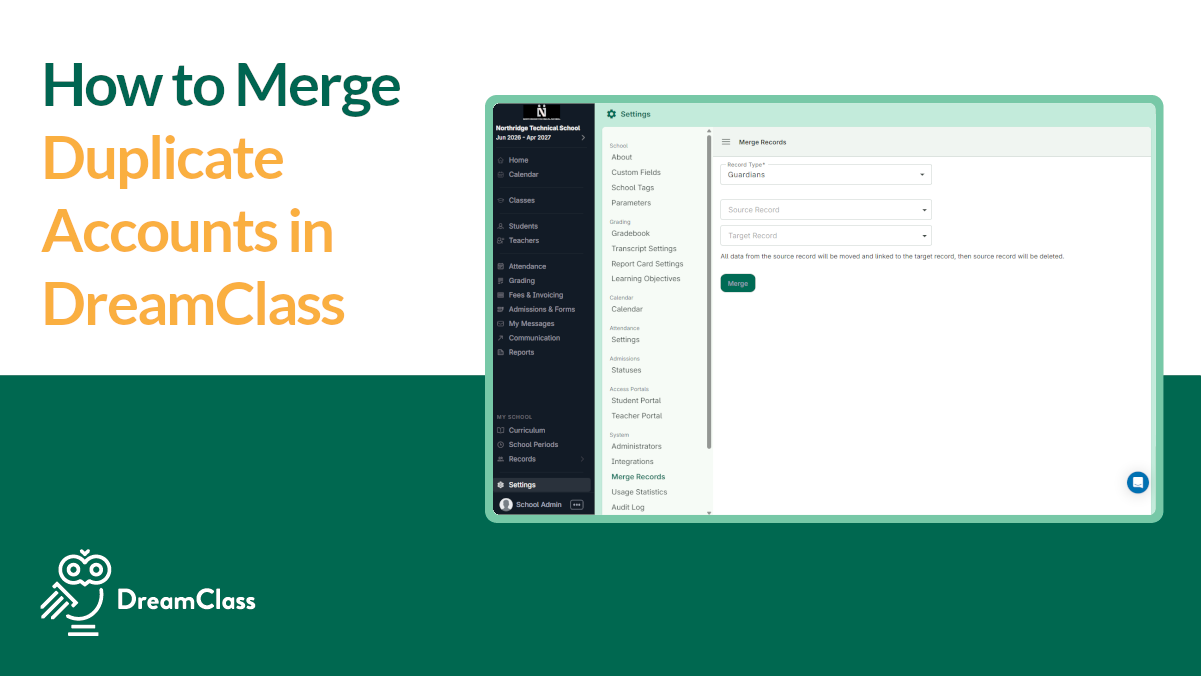
Since you’ve been asking, yes, you can fix duplicate accounts, including student, guardian, and teacher profiles in DreamClass by using the built-in merge tool in Settings. In most cases, you choose the source record, choose the target record, and merge the data into the profile you want to keep.
Do you really need that? Well, duplicate profiles create confusion fast. For example, one student may appear twice. In other cases, a guardian may be linked to the wrong record. Sometimes a teacher profile splits attendance, grades, or communication history across two entries.
That is exactly why DreamClass includes a built-in merge tool. If you are also cleaning up family records, it helps to understand how to manage student and parent information with DreamClass before you merge profiles.
For private schools, homeschool groups, training centers, and growing learning programs, this matters more than it sounds. Clean records help your team trust the system. They also help families, teachers, and admins see the right information in one place. So, here’s how it’s done:
DreamClass duplicate accounts at a glance
If you want the fastest possible summary, here is the practical version.
- You can merge duplicate student, guardian, and teacher profiles in DreamClass.
- The source record is removed after the merge.
- The target record stays and receives the merged data.
- You should always double-check the merge direction before you confirm it.
- If DreamClass says the merge cannot be completed automatically, contact support.
That short summary of the core action should help you, busy admins, understand the page quickly.
What are DreamClass duplicate accounts?
DreamClass duplicate accounts are extra student, guardian, or teacher profiles that were created by mistake. Usually, this happens when a name is entered twice, a profile is mistyped, or the system cannot match a person to an existing record during data entry. It might also happen if you tried to importe all these profiles from a patchwork system of separate tools.
As a result, your school can end up with:
- two profiles for the same student
- duplicate guardian records tied to the wrong family setup
- teacher data split across multiple entries
- missing context in attendance, communication, or academic records
In other words, duplicate profiles create extra admin work. More importantly, they make simple school tasks harder than they should be. We don’t want that, do we?
Why should you fix duplicate accounts in DreamClass right away?
Merging duplicate accounts is not just a cleanup task. It also protects the quality of your school data.
When your records stay organized, your team can:
- check the right student history faster
- keep parent and guardian relationships accurate, through user access management
- reduce mistakes in communication
- avoid confusion in reporting and daily admin work
- keep one clear profile for each person in your school
That’s especially useful when DreamClass becomes your main place to manage student records, attendance, admissions, class data, and family communication. Schools that want a broader overview can also explore what a student information system is and how DreamClass fits that role.
Why do vocational and multi-program schools see more duplicate accounts?
Schools running more than one program under one roof hit this issue more often than a single-track K-12 campus does. A student who signs up for an ESOL class this term and a CNA or HHA class next term, for example, can easily end up as two separate profiles. Especially if the second enrollment comes through a different form or staff member. The same pattern shows up in adult-education and workforce-training programs, where one person often moves between course tracks within the same year.
If your school runs several programs at once, it’s worth a quick profile search before each new enrollment. Don’t depend on a cleanup pass after the fact. Catching it at sign-up is faster than merging it later, especially once attendance or grades are already recorded against the duplicate. 😉
Don’t worry if you missed any, though. You can still solve this:
How do you merge DreamClass duplicate accounts step by step?
The process is simple, but you need to choose the right direction before you click Merge.
Step 1: Open Settings
First, go to Settings in the bottom-left area of your DreamClass account.
Step 2: Go to the merge tool
Next, open the Merge section.
From there, you can choose the type of account you want to clean up. This includes student, guardian, and teacher records. If teacher access is part of the issue, review teacher management and allow DreamClass access to your teachers alongside this process.
Step 3: Find the duplicate profiles
Search for the person with the duplicate account.
For example, you may notice that a student was entered twice because of a typo, or because someone created a new profile instead of using the existing one.
Step 4: Choose the source record and the target record
This is the part that matters most, so slow down here.
- The source record is the profile that will be removed after the merge.
- The target record is the profile that will stay.
- Data from the source record moves into the target record.
⚠️ So, before you confirm anything, make sure you are moving data in the right direction. That single check prevents the most common mistake.
Step 5: Click Merge
Once you click Merge, DreamClass combines the records.
After that, the source account no longer exists as a separate profile. Instead, its data is moved and linked to the target record.
Step 6: Review the final profile
Finally, open the remaining student, guardian, or teacher profile and confirm that the information appears as expected. Check the basics before you move on.
This quick review helps you catch mistakes early and gives your team confidence that the record is now clean.
▶️ Watch the video:
0:01 Hi there, this is Lida, and I’m taking this video to show you one of the most common issues with user accounts is that there are duplicate accounts, and that’s why under settings, which can be found at the bottom left corner of your screen settings, and then if you go to merge, you have 30 types of accounts
0:22 that you can merge. Students, so for example, if I type the word Lida. And by accident, I mistype her and the system didn’t identify her.
0:35 And we have source record in target record. So the source record, as it says, all data from the source will be moved and linked to the target.
0:44 So once you hit merge, this account will no longer exist. So once you hit that, the system now merged the two profiles.
0:55 So if we now go to the student, You can see information from before has been merged into this student. One of the things that might happen is if you’re trying to merge records of guardians, and for some reason you see over here a message that this cannot be completed, you can reach out to our him.
1:21 So I would like to highlight that this reading this very central source record is Where I want something to start from and where I wanted to land.
1:32 So I’m gonna do this, um, change now to show you something. Let’s pretend that I want to move everything from this source to Amanda Holthorn.
1:44 Once I hit merge, the system what it will do. It says cannot merge automatically, please reach out to support. So, if you ever see this, which is what I described, you cannot perform the merge yourself to contact support at www.DreamClass.io.
2:02 Thank you so much for watching and have a beautiful day. Bye.
What should you check before you merge profiles?
Before you merge DreamClass duplicate accounts, pause for one minute and verify these details:
- Is the target profile the one you want to keep, long term?
- Does the source profile contain the duplicate data you want moved?
- Are you merging the same person, not two different people with similar names?
- Will this merge affect parent links, class assignments, or staff access?
Although the tool is straightforward, this small check prevents bigger cleanup work later. It also saves support time if your team catches a wrong merge early.
What happens after a DreamClass merge?
After a successful merge, the duplicate profile disappears, and the kept profile becomes the single source of truth.
That matters because DreamClass is designed to centralize school operations. When one accurate profile holds the right information, your team can work faster across admission management, attendance, communication alerts, academic records, and family access. All through a single source of truth (as we like to call it).
For buyers comparing school management systems, this is one of those practical features that saves time quietly. You may not shop for software because of a merge tool alone. However, you do feel the difference when your system helps you fix common admin mistakes without outside help. Especially if you’re transitioning from Excel sheets or a bunch of different pieces of software.
When can you not merge duplicate accounts by yourself?
Sometimes DreamClass will show a message that says the merge cannot be completed automatically.
When that happens, do not force a workaround. Instead, contact DreamClass support.
This usually happens with certain guardian merges or account relationships that need extra handling behind the scenes. So, while many duplicate profiles can be fixed directly in the platform, some cases need support intervention.
When should you contact DreamClass support for duplicate accounts?
Reach out to support when:
- the platform says the merge cannot be completed automatically
- the account relationship looks unusual or incomplete
- you are unsure which record should stay
- the duplicate involves sensitive family or staff data
A careful support review is always better than merging the wrong profiles.
Why do DreamClass duplicate accounts matter for school operations?
Most schools don’t operate in perfect conditions. Names are mistyped. Families re-enroll. Staff change roles. Records get entered twice. That’s normal in busy school operations; you can’t really avoid it.
A good school management platform should help you recover from those real-world mistakes, without turning them into bigger admin problems.
DreamClass stands out here, because it gives schools one place to manage:
- student and guardian records with student management
- teacher profiles with teacher management
- admissions and enrollment flows with admission management
- attendance and academic tracking with academic management
- communication with families and staff through communication alerts
That means the merge tool is not an isolated feature. Instead, it supports the bigger promise of DreamClass: Keeping your school organized, in one place.
What should school admins remember before they merge duplicate profiles?
Before you click Merge, remember one thing: The safest cleanup is the one you do slowly.
In real schools, duplicate accounts rarely happen because a team is careless. Instead, they happen because admissions move quickly, names are entered in different ways, or someone creates a second profile, while trying to solve a small problem on the fly. That’s also normal. But, still, a rushed merge can create more confusion than the original duplicate.
So, take a final pause. Let’s recap: Check the record you want to keep. Also, check the record you want to remove. Then confirm that the student, guardian, or teacher is truly the same person.
Final takeaway
DreamClass duplicate accounts (duplicate accounts in general, really) are a normal admin issue, not a sign that your school is disorganized. Well, unless you don’t fix it, that is.
So, what matters is having a system that lets you fix the problem cleanly.
With DreamClass, you can merge duplicate student, guardian, and teacher profiles from the settings area, keep one accurate record, and reduce confusion across your day-to-day operations. And if a merge needs extra care, the support team can step in through the DreamClass contact page.
For schools that want less spreadsheet cleanup and more confidence in their records, that is the kind of detail that makes a platform easier to trust.
So, DreamClass duplicate accounts are fixable, and the merge tool handles the common cases well.
- Use the merge tool from Settings.
- Keep the correct profile as the target record.
- Move duplicate data from the source record.
- Review the final profile after the merge.
- Contact support if the system blocks the merge.
For school teams, that means less cleanup, fewer mixed records, and more confidence in the data you rely on every day.
Want a school system that helps you clean up duplicate records, keep families informed, and manage operations in one place?
Related Reads
FAQ
Frequently Asked Questions about DreamClass duplicate accounts
Can you merge student, guardian, and teacher profiles in DreamClass?
Yes. DreamClass lets you merge student, guardian, and teacher profiles from the merge tool.
Does the source record stay after the merge?
No. The source record is removed after the merge is completed.
Where does the data go after a merge?
The data moves from the source record into the target record you keep.
What if the system says the merge cannot be completed automatically?
Stop there and contact DreamClass support. That type of merge needs manual help.