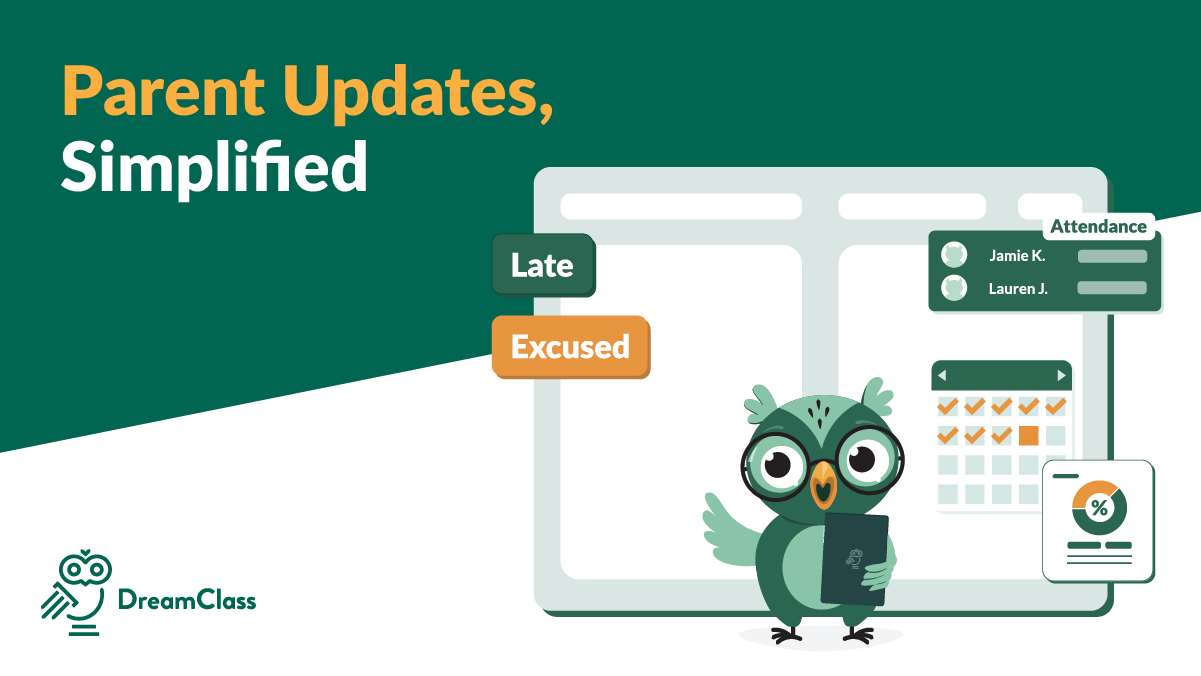
DreamClass parent portal access is simple to set up when your guardian records are ready. In practice, you go to Families, open Bulk Actions, choose guardian access, and enable logins for the parents or guardians you want to invite. Once access is enabled, DreamClass sends invitation emails, so families can reach their parent account and start following student updates.
To invite guardians to the DreamClass parent portal, go to Families, open Bulk Actions, select guardian access, and enable login access for the guardians you want to invite. Before you do that, make sure each guardian record has the correct email address.
That sounds small. It’s not. For many schools, this is the moment parent communication stops living in email threads, spreadsheets, and one-off reminders.
If you run a private school, a new K-12 school, a structured homeschool group, or a vocational program, the value is the same: give families one clear place to check updates instead of making your team answer the same questions over and over.
Why does the DreamClass parent portal matter for school operations?
The DreamClass parent portal gives families one place to check updates, attendance, progress, and school information without contacting the office for every detail.
The DreamClass parent portal gives guardians a direct way to stay connected to what is happening at school. Instead of asking the office for every update, parents can log in and follow the information that matters to them.
That matters because family visibility reduces admin friction. It also helps schools look more organized and professional to parents and students alike. For schools that are still piecing communication together through email, spreadsheets, or group chats, that change is bigger than it looks.
With guardian access enabled, schools can support a better family experience around:
- student progress
- attendance visibility
- school communication
- fee and invoice follow-up
- schedules and school events
For smaller schools and learning groups, that kind of clarity goes a long way. You do not need more tools. You need one working parent login that keeps everyone on the same page. If you are also improving your parent communication tools, this setup gives that work a clear home.
What should you check before inviting guardians?
Before inviting guardians, make sure each guardian is linked to the correct student and has a valid email address on file.
Before you start the invite flow, check one thing first: each guardian should have an email address saved in their profile.
That step is easy to overlook. However, it decides whether the invitation actually reaches the parent.
Use this quick checklist before you bulk invite guardians:
- Confirm the guardian is already listed in Families.
- Confirm the guardian is linked to the correct student.
- Confirm the guardian has a valid email address.
- Confirm you are ready to enable access for that group.
- Confirm families know to look for the invitation email.
If a guardian record has no email address, that person will not receive the invitation email. So, before you click enable, it’s worth reviewing the list once.
What can parents see in the DreamClass parent portal?
Depending on your school setup, parents can use the DreamClass parent portal to view attendance, grades, schedules, communication, and fee updates.
Once access is active, the DreamClass parent portal gives families one place to check the updates they usually ask the office for.
That matters because K-12 schools, maybe new founders, and then also homeschool groups, and vocational programs often lose time repeating the same answers. A clear parent login reduces that back and forth.
Depending on your school setup, parents can typically use the portal to check:
- attendance information
- gradebooks, assessments, report cards
- class schedules and school events
- school notes and communication
- student fees, invoices, payment updates
- teacher information connected to their child(ren)
In other words, the portal helps parents stay informed without adding another manual task to your (or their) day. It also pairs naturally with attendance updates for families and student progress and report cards when you want families to see more than messages alone.
How do you invite guardians to the DreamClass parent portal?
Go to Families, open Bulk Actions, choose guardian access, and enable login access for the guardians you want to invite.
If you want the fastest version first, the path is simple:
- Go to Families.
- Open Bulk Actions.
- Select guardian access.
- Enable login access.
- Parents receive the invitation email.
This workflow is best when you want to invite several parents at once.
Step 1: Open the Families area
Start in Families. This is where you manage guardian and family records.
If your school already has parent or guardian details in the system, this is the fastest place to work from.
Step 2: Choose Bulk Actions
Next, go to the top-right area and open Bulk Actions.
This is the shortcut that makes sense for schools that don’t want to handle parent logins one by one.
Step 3: Select guardian access
From the available options, select the access setting for guardians.
At this stage, DreamClass shows the guardian list and their current login status.
For guardians who have not been invited yet, the default status is typically login not enabled.
Step 4: Update access and enable logins
Now choose Update Access and set the selected guardians to Enable.
This is the action that turns on DreamClass guardian access for the selected records.
Once you confirm the change, DreamClass sends invitation emails to those guardians so they can access their parent account.
Step 5: Ask families to check their inbox
After access is enabled, parents should receive an email with instructions for reaching their account.
If a family says they did not get the message, first check whether the guardian record includes the correct email address.
That solves the most common issue right away.
Watch the video:
0:00 So, hi there, this is Lida. And in this video, we’re gonna see how we can invite our parents into the platform.
0:07 So, the first thing that I’d like to- to do is go to Families, and then select on the top right corner bulk actions.
0:15 1. Once you select DreamClass Access for Guardians, you will see all of your Guardians here, and the default status should be, umm, log in, not enabled.
0:28 So what we’re looking to see is once you hit Update Access, You Enable. Once you click that, let me show you.
0:36 Once you hit that, and once you select Enable, all of your parents, are going to receive an invitation on how to, um, how to access their parent account.
0:47 One thing that you should- Yeah. In mind, is that you don’t want to get in and take any tooth conditions that need to be met.
0:54 First of all, they have to be someone who accept- I’m sorry. You don’t need to worry about that. Second of all, just browse through the- e-mail, right?
1:06 Jason Black doesn’t have an e-mail address, which means he’s not gonna receive any emails from the system. So, if you see- here, everybody, most of them, do have an e-mail address, which is cool.
1:17 Um, thank you so much for watching this. If you have any other questions, please let me know. Uh, but just a bonus, uh, tip.
1:24 This is the same flow for teachers and students as well. So every time. If you want to bulk invite new audience, new members into your DreamClass account, you just go to the top right corner box.
1:36 Thanks for watching, bye!
What happens after the invite is sent?
After you enable access, parents receive an invitation email and can log in to the DreamClass parent portal to start checking school updates in one place.
After access is enabled, parents should receive an email invitation with instructions for reaching their account.
From there, they can log in to the DreamClass parent portal and start using one place for school updates, student information, family visibility, everything. That is the real operational win. Instead of sending the same update again and again, your team gives families a reliable parent login.
Now, if a family says they did not get the message, start by checking the guardian email on file. That is usually the first thing worth verifying.
What can parents do after they get DreamClass guardian access?
Once parents enter the DreamClass parent portal, they can follow important student and school information without going back through the office every time.
Depending on your school setup, guardians can use the portal to:
- view student progress
- track attendance information
- review schedules and school events
- see fees, invoices, or payment updates
- stay connected to school communication
That is most practical for schools with lean teams. Instead of sending repeated updates manually, you give families a reliable place to check what they need.
For a private school founder, that means fewer moving parts. For a homeschool collective, it means clearer family communication. And, of course, for a vocational program, it means a more professional student support experience.
What if a guardian does not receive the invitation?
If a guardian does not receive the invitation, the most likely cause is a missing or incorrect email address in the guardian record.
Usually, the problem isn’t the workflow. It’s the record.
If a parent does not receive the invitation, review these items first:
- the guardian has an email address on file
- the email address is spelled correctly
- the correct guardian record was selected during bulk access updates
- access was actually changed from not enabled to enabled
- the family has checked spam or junk folders
In other words, start with the basics. A clean family record prevents most invite issues.
This whole mixup is one reason schools that switch from disconnected tools to a single system often feel immediate relief. When records, access, and communication live in one place, troubleshooting gets so much faster.
When should you use bulk invites for the DreamClass parent portal?
Bulk invites make the most sense when you are:
- onboarding families at the beginning of a term
- opening parent access for a new class or intake
- moving from manual communication to a parent login
- cleaning up family communication after using spreadsheets or email chains
This approach is especially useful for smaller teams. You do the setup once, then families get a direct path into their account.
And, of course, that is a better experience for them and less work for you.
Can you use the same access flow for other users?
Yes. The same general bulk access flow can also help you invite teachers and students.
Yes. The same bulk access idea also applies when you want to invite other user groups into your DreamClass account.
That means schools can use a similar flow for teachers and students as well.
So, if you are building a more organized school setup, this is not just a parent access task. It’s part of a bigger move toward one system for families, staff, and learners alike.
Why is this setup valuable for smaller schools?
Smaller schools often reach the same breaking point. That is, too many updates, too many separate tools, and too much admin work tied to basic communication.
The DreamClass parent portal helps solve that in a practical way.
It gives families a parent login. It gives your team fewer repeat questions. And then, it gives your school a more structured experience, without making things feel heavy or bureaucratic.
That balance matters for:
- private schools that want cleaner family communication
- new K-12 founders who need one place to run daily operations
- homeschool collectives that want school structure without losing flexibility
- vocational schools that need clearer records and a more professional front
When families can check updates on their own, your team gets time back; a lot of it, too!
How can you make parent access smoother, from day one?
A simple process works best. If your team is just getting started, the onboarding flow can make setup easier.
So, first, clean up guardian records before sending invites. Next, enable access in bulk instead of one by one. Then, tell families what the portal is for, so they know where to check updates.
You do not need a complicated rollout. You need a clear one.
A short admin checklist helps:
- add or verify guardian emails
- review family records
- enable access in bulk
- confirm invitations were sent
- remind parents to use their login for future updates
That one setup step can reduce a surprising amount of follow-up later.
Final thoughts: Is the DreamClass parent portal worth using?
The DreamClass parent portal is worth using if your school wants better family visibility and fewer manual updates.
If you think about it, the DreamClass parent portal isn’t just a login page. It’s a simple way to help parents stay informed while your team stays organized.
And, of course, if your current process depends on inbox searches, text threads, or scattered notes, inviting guardians into DreamClass is one of the easiest ways to create more structure, fast.
What’s next?
Want a cleaner way to keep families informed without adding more admin work? Start with one clear parent login and one simple invite flow. Start with one place families can check updates on their own.
Related Reads
FAQ
Frequently Asked Questions
How do I invite parents to DreamClass?
Go to Families, open Bulk Actions, select guardian access, and enable login access for the guardians you want to invite.
What can parents see in the DreamClass parent portal?
Depending on your school setup, parents can usually see attendance, grades, schedules, communication, even fee updates.
Why did a parent not receive the DreamClass invitation?
The most common reason is that the guardian record does not include an email address, or the email address is incorrect.
Can I invite multiple guardians at once?
Yes. DreamClass supports a bulk access flow, which makes it easier to invite several guardians in one action.
Is the parent invite flow only for guardians?
No. The same general bulk access approach can also be used for other user groups, including teachers and students.