To send a tuition invoice to a family or student in DreamClass, open their profile and go to the Financial tab. Confirm a fee is assigned, then click Invoices → New Invoice. From there, pick which installments to include, set the due date, and decide whether to notify the family by email, or not. The whole process takes a couple of minutes, and it never touches your bulk or automated billing.
This manual method sits alongside the bulk and automated invoicing tools available in DreamClass. Reach for it whenever a charge doesn’t fit your regular billing cycle.
When Should You Use Manual Invoicing Instead of Bulk or Automated?
Bulk and automated invoicing handle your school’s regular billing. So, they’re about monthly tuition for your whole roster.
Manual, one-by-one invoicing is different. It’s built for exceptions, like a field trip fee for one family or, say, a one-time late charge. It also lets you fix an individual case, without touching your automated schedule. You create the tuition invoice, send it or hold it, and your regular billing keeps running underneath.
What Do You Need Before You Send a Tuition Invoice?
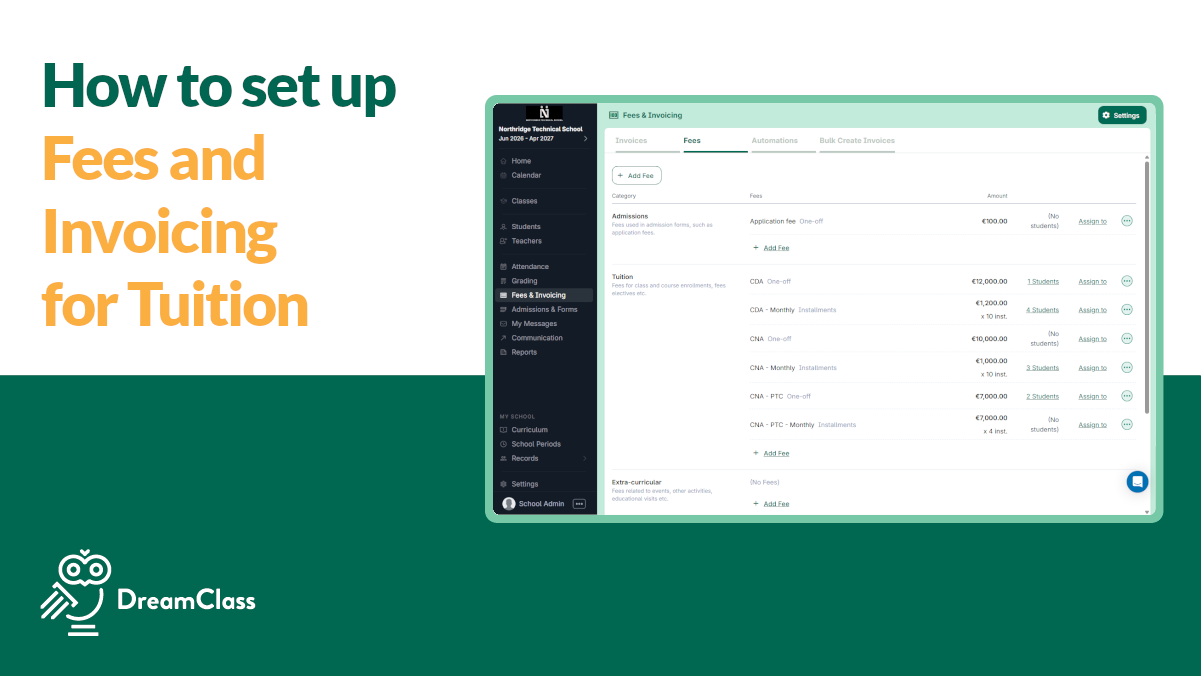
Every invoice in DreamClass starts with an assigned fee. A fee is simply an obligation for payment. It could be tuition, a field trip charge, a uniform fee, or anything else you bill for. Before you can invoice a family, that fee needs to be assigned first.
Check the assignment first:
- Open the family’s profile (for example, the Andersons).
- Click the Financial tab, then Fees.
- Confirm the right fee is assigned. Tuition is the default category, but you can choose a different one from the dropdown, if needed.
If a family has more than one enrolled child, you can assign the same fee to multiple students at once. That way, you’re not repeating setup for each sibling. This matters most for sibling discounts and family-wide fees, since you set up the assignment once and it applies everywhere it’s needed.
How Do You Send a Tuition Invoice to a Family, Step by Step?
This is the core workflow you’ll use anytime a one-off charge comes up, whether that’s a field trip fee, a makeup charge, or anything else outside your regular billing. Once a fee is assigned, sending the tuition invoice takes six steps:
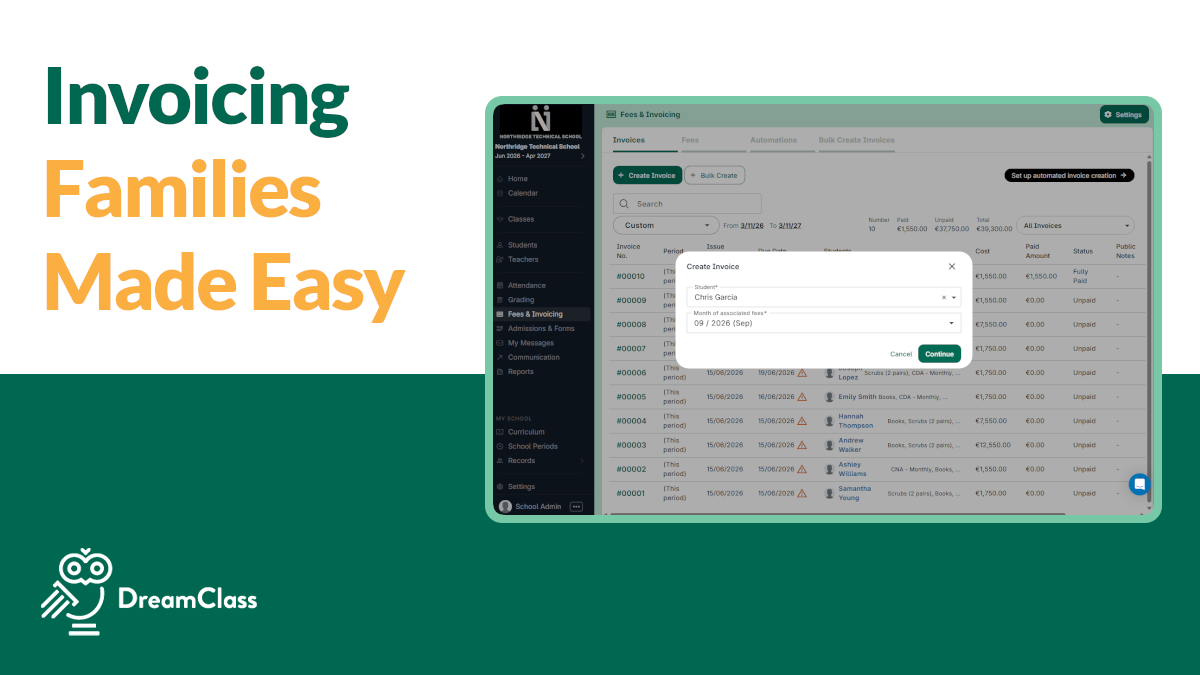
- Go to Financial → Invoices on the family’s profile and click New Invoice.
- Review the available installments. DreamClass shows what’s currently due. For a monthly plan, that works like a gym membership. A new installment opens up as each billing period arrives. If you’re invoicing ahead of schedule, the system pulls in every installment due by then.
- Choose which installments to include. You’re in full control here. If you only want to bill this month’s installment, remove any others the system added.
- Set or confirm the due date. Adjust it if you want payment by a specific day.
- Click Create Invoice.
- Pick Create and Notify or Just Create. Create and Notify emails the tuition invoice straight to the family. Just Create adds it to their account without sending anything.
That’s the full flow. There’s no separate step for siblings and absolutely no need to touch your bulk settings. The family sees one clear, one-time charge, and everything else on their account keeps running exactly as scheduled, whether that’s next month’s tuition or an upcoming automated batch.
▶️ Watch the video:
0:00 Hello, hi there, this is Lida. And this quick video is about invoicing. How can I send one invoice manually to a family or to a student, uh, if I’m not using the bulk options or the automated option?
0:16 So, when you go to a specific family, such as the Andersons, they have a tab at the top called Financial.
0:28 So the first thing is to click the fees and make sure that they have you have assigned fees to that family.
0:35 So, what is a fee? A fee is an obligation for payment. It can be a tuition, it can be, uhm, a field trip, whatever it is.
0:45 So, tuition is the category that is about this, and if I want to select another one, or I see the drop-down of my available, uhm, fees, I assign that to the family.
0:59 Now, if a family has multiple children, right, uhm, you can assign that fee. to multiple students. So, in this case, you can see that we have assigned this fee to, uhm, this specific family.
1:13 And now we need to invoice them. So, if you click Financial Invoices, here you have a button that says New Invoice.
1:20 And you click it, and you can see the installments about, uh, August. Now, mind you, that the more you progress over time, the more, uhm, the more you’re going to see available fees to be charged.
1:35 It works like this. If you have a monthly payment, it works like a gym subscription. Every month, you have to pay something, right?
1:41 And if I’m invoicing for months in advance, the system automatically brings all the installments. So, for now, I can only invoice the first and second installment.
1:52 Mind you, you have control over what fees show up in the August invoice. So, if you don’t want to include, let’s say, the second installment, you can remove it and just keep the one that’s due in August.
2:06 Once you’re done, and this makes sense for you, you can create the invoice by clicking Create Invoice, and you can select Create and Notify.
2:15 Create and Notify is going to send an email to, uhm, this parent. If you want to silently create that invoice, you can just choose Just Create, which doesn’t trigger an email.
2:28 Last but not least, you have full control over the due date. So if you want to receive a payment by that date, you’re able to change that.
2:36 So once you click Create and Notify, this is going to send an email. to that family. This is the manual invoicing, one by one, and let me know if you have any questions.
2:50 Bye!
Excellent product
Dreamclass allow me to issue different type of invoices such as monthly or lump sum based on parent choice.
DirectorEducation Management
What If No Installments Show Up When You Click New Invoice?
If the New Invoice screen looks empty, the most likely cause is a missing fee. Go back to Financial → Fees on that family’s profile and confirm a fee is actually assigned. Invoices are always built from an assigned fee, so nothing to bill means nothing to show.
A second, less common cause is timing. Installments become available as each billing period arrives, so a future month simply won’t appear yet. If you need to invoice ahead of schedule anyway, wait for the next installment to open. Or check with your DreamClass support contact about adjusting the schedule.
Typically, this is all the troubleshooting you’ll ever need.
What Does Manual Invoicing Look Like Across Different Schools?
Manual invoicing solves a slightly different problem, depending on how your school runs.
For example, a small private school administrator might use it for a one-off field trip fee that only three families opted into. There’s no reason to touch the automated tuition schedule for that.
Running a lean office without dedicated admin staff is typical for a new K-12 founder. Manual invoicing lets them bill a late-enrolling family for a prorated first month, covering the gap before regular billing catches up.
Fees often vary from family to family for a structured homeschool co-op administrator, whether that’s a workshop add-on or a lab-fee reimbursement. Creating invoices one at a time keeps billing accurate without restructuring the whole co-op’s fee schedule.
When a student joins mid-program during overlapping intakes, a vocational school director typically needs to invoice just the installments that still apply to them. Manual invoicing handles exactly that.
In each case, the fee gets assigned and the invoice gets created. The rest of the school’s regular billing keeps running untouched.
Can You Invoice Multiple Children in the Same Family at Once?
Yes. Because fees can be assigned across every child in a family, one invoice can cover multiple students. That’s handy for sibling discounts or any family-wide charge you’d rather not split up.
Create and Notify vs. Just Create: Which Should You Choose?
Pick Create and Notify when you want the family to see the tuition invoice right away. It triggers an automatic email with the charge and due date.
Then, pick Just Create when you need the invoice on file first, without alerting anyone yet. Maybe you’re double-checking the amount, batching a few invoices before sending, or timing a charge to go out later.
And if we were to guess what you’re thinking next, rest assured, neither choice locks you in. You can always follow up separately, once you’re ready for the family to see it.
Great and Inexpensive School Management site!
DreamClass is so easy to use and was easy to learn! I love that it is extremely customizable to our school needs, and it is an easy platform for parents, teachers and admin to communicate with each other! The financial invoicing makes it so easy to have everything in one place, and with the Stripe portal, parents can easily access their invoices! I hope to have some sort of way to set up automatic payments for parents so it’s even more easy for them to use! Lids has been a HUGE help and is so quick to respond with advice or videos on how to navigate any problems or questions that might arise.
Office ManagerEducation management
So, whether you’re running a single-campus private school or maybe a growing vocational program with overlapping intakes, one-off charges are inevitable. DreamClass keeps them from turning into spreadsheet chaos. Assign the fee, create the tuition invoice, and decide exactly who hears about it and when. Sounds like a plan?
Related Reads
FAQ
Frequently Asked Questions about a Tuition Invoice
Can I send an invoice to just one student instead of the whole family?
Yes. The same Financial → Invoices flow works from an individual student’s profile, not only the family’s. Assign the fee to that student, then create an invoice the same way. It’s the same tuition invoice flow, just scoped to one student.
What happens if I don’t include every installment the system shows me?
Nothing breaks. The remaining installments stay available and show up the next time you create a tuition invoice for that family. You’re only billing for what you select right now.
Can I change the due date after I’ve already created the invoice?
The due date is set when you create the invoice, so choose it carefully at that step. For changes after the fact, check with your DreamClass support contact.
Does choosing “Just Create” mean the family never finds out about the invoice?
No. It just means no email goes out automatically at that moment. The invoice still exists on their account, and you can notify them separately whenever you’re ready.