DreamClass lets you issue a full refund directly from any paid invoice in a family’s account. For partial refunds, you’ll process those through your connected Stripe account instead. Below, we’ll walk through both paths for tuition refunds, step-by-step.
Tuition refunds seem to come up more often than most administrators expect. Different things can cause them. Maybe a family withdraws mid-term, or a duplicate payment slips through. Maybe a class gets cancelled after parents have already paid. However it happens, you need a way to reverse that charge without digging through spreadsheets or emailing your payment processor and hoping for the best. Let’s elaborate:
Full Refund vs. Partial Refund: The Difference
Before you click anything, it helps to know which type of tuition refunds you’re dealing with, since DreamClass and Stripe split this responsibility between them. Picking the wrong path means extra clicks, and in some cases, reversing a full refund and rebilling the difference manually. The quick reference below breaks down what each option does.
- Full refund: Returns the entire amount of a specific payment. You can issue this directly inside DreamClass. So, no Stripe login required in this case.
- Partial refund: Returns only part of a payment (say, $50 of a $200 invoice). DreamClass doesn’t process partial refunds natively. Instead, you’ll handle these through your Stripe dashboard, which is connected to your DreamClass account for online payments.
Let’s take a look at the details:
Why DreamClass Splits Tuition Refunds This Way
This split of tuition refunds exists because DreamClass keeps invoicing and family records centralized, while Stripe handles the underlying payment rails. For a full refund, DreamClass can reverse the transaction and update the family’s records in one action. But a partial refund requires splitting a transaction Stripe already processed, which is a job better suited to Stripe’s own toolset.
Excellent product
Dreamclass allow me to issue different type of invoices such as monthly or lump sum based on parent choice.
DirectorEducation Management
That same flexibility carries over to refunds. Meaning, whether you created the tuition invoice as a monthly charge or a lump sum, the refund process stays the same once you’re looking at the paid invoice.
Common Reasons Schools Issue Tuition Refunds
Every school ends up issuing a tuition refund sooner or later, even with the most careful billing process in place. Most requests fall into a handful of familiar situations. So, maybe a family leaves partway through the term and is owed back a prorated or full share of unused tuition. Or maybe a parent pays twice, or a payment lands on the wrong invoice by mistake. And, what if a class gets cancelled after the school has already collected payment, and every enrolled family needs money back? Or an invoice simply had the wrong amount on it, and the overage has to come back to the payer? These are all real scenarios.
So, for a duplicate payment or a straightforward cancellation, a full refund through DreamClass is usually the faster path. But, for prorated withdrawals or billing corrections, where only a portion of the payment needs to come back, you’ll need to head to Stripe instead. Let’s look at that, next:
How to Issue a Full Refund in DreamClass
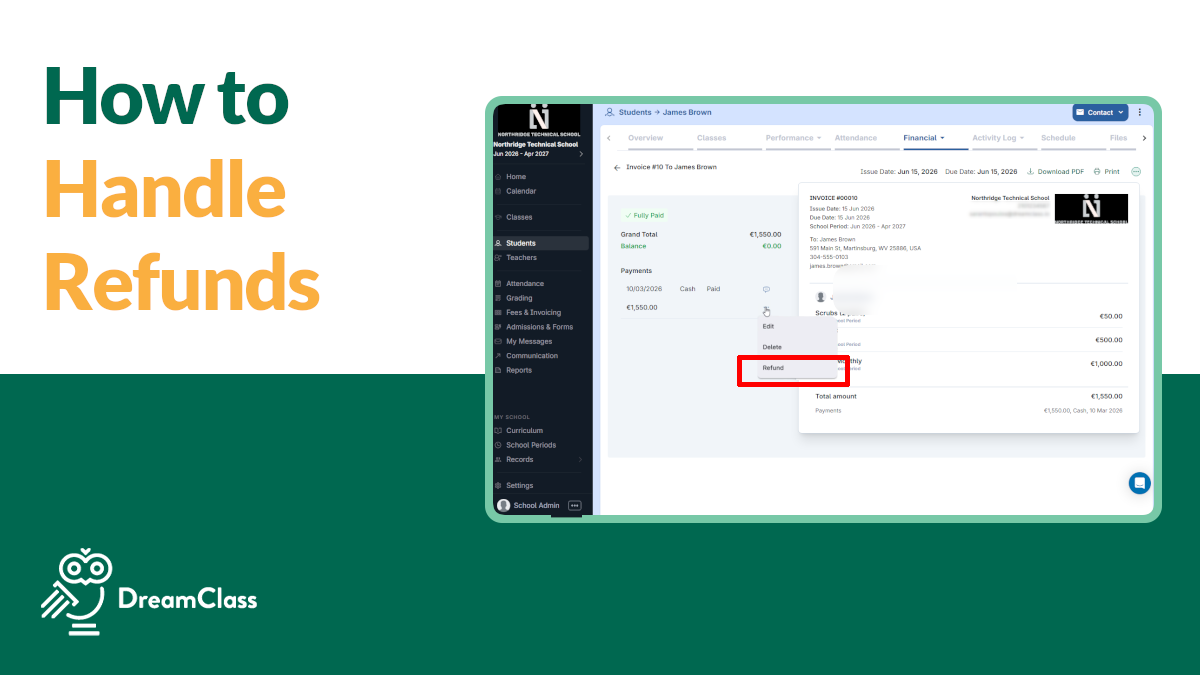
Full refunds take just a few clicks, and DreamClass updates the family’s “ledger” automatically once the refund is issued. In other words, you don’t have to touch a spreadsheet afterward. You’ll do this from inside the family’s invoice, using the same view where the original payment was recorded.
- Open the correct family record. Search for or select the family whose payment you want to refund.
- Go to their invoices. Open the invoice tied to the payment you’re refunding.
- Find the payment and click the three dots ( ⋮ ) next to it. This opens the action menu for that specific payment.
- Select “Refund.” DreamClass will process a refund for the full amount of that payment.
Note that this action refunds the entire payment amount. If you only need to return part of it, skip ahead to the Stripe steps below, rather than issuing a full refund and rebilling the difference. Reversing it the wrong way just creates more manual cleanup on the family’s account later.
How to Issue a Partial Refund Through Stripe
Because DreamClass doesn't support partial refunds natively, you'll need to log in to the Stripe account connected to your school and process the refund there. This adds one extra login to your workflow, but it's the only reliable way to return less than the full payment amount, without adjusting the invoice by hand.
- Log in to your Stripe dashboard. Use the Stripe account linked to your DreamClass payment processing.
- Locate the original payment. Search by amount, date, or the family's name/email to find the specific transaction.
- Select "Refund" on that transaction. Stripe will let you enter a custom amount instead of refunding the full payment.
- Enter the partial amount and confirm. Stripe processes the refund directly to the family's original payment method.
Keep in mind that a partial refund processed in Stripe won't automatically sync back to the invoice status inside DreamClass. Update the family's account or invoice manually afterward, so your records stay accurate on both sides.
Watch the video
▶️ Watch the video:
0:00 Hello, hi there, this is Lida, and in this video we're going to see how we're going to issue refunds for our school.
0:07 So, in DreamClass, when you have a specific refund that you want to issue, you're able to go here and click this three details and click Refund.
0:16 That is something you can do by issuing entire refunds, which means that you can, you will refund all the amount of $100.
0:27 You cannot issue a partial refund. If you would like to issue a partial refund, you can do that here. through the Stripe environment.
0:34 Otherwise, just go into your invoices that have been paid through Stripe, click the three dots next to the payment, and click Refund.
0:43 In order to do that, just make sure that you've gone into the right family. You open up the invoices. And then you will be able to see the three dots and click Refund.
0:53 Thank you so much and have a beautiful day. Bye!
What Happens After You Issue a Refund
Once a full refund is processed inside DreamClass, the payment status on that invoice updates to reflect the refund, and the family's account balance adjusts accordingly. This kind of automatic reconciliation is one of the core benefits of using invoicing software built into your school management platform, rather than tracking payments by hand.
For partial refunds processed through Stripe, the money moves correctly, but since the transaction happens outside DreamClass, you'll want to check the invoice afterward to confirm the balance still matches what the family actually owes. A quick note in the family's file or invoice comments can save confusion later. Especially if another staff member reviews the account.
Schools managing tuition across multiple payers, siblings, or payment plans tend to appreciate having that centralized visibility:
Exceptionally User-Friendly & Customizable...Outstanding Support!
Our primary investment in DreamClass was to streamline the admissions process and manage billing. It has saved us hours and hours of time, exceeding expectations along the way. We had previously done everything on paper, and it was a nightmare. The simplicity of that feature alone would have been enough for us, but DreamClass has also given us a comprehensive tool to keep all of our information in one place, including attendance, grading, and communications. We continue to develop and use more features along the way, namely on guardian/student-facing side with communications and progress reports.
This is why DreamClass keeps refund actions tied to the family record. Even when a refund routes through Stripe, your invoice history stays the single source of truth for what a family has paid, owes, or has had returned.
Build a Quick Refund Checklist for Your Team
If your school issues more than the occasional refund, it helps to standardize the process, instead of relying on whoever happens to handle it that day. A short internal checklist keeps every refund traceable, no matter who's at the keyboard:
- Confirm the original payment method: DreamClass invoice or Stripe.
- Decide whether the refund is full or partial.
- Process it in the matching system: DreamClass for full refunds, Stripe for partial ones.
- Leave a note on the family's invoice or account confirming the refund was issued.
That fourth step matters more than it sounds like it would. It prevents the most common refund headache. Imagine two staff members processing the same request twice, because neither could tell it had already been handled. For schools issuing even a handful of refunds each term, this small habit saves real reconciliation time when it comes to closing out the billing cycle.
How are You Handling Tuition Refunds?
If you're still comparing school management platforms, refund handling is a fair gauge of how well a system's invoicing, payments, and family records actually work together. You can book a free demo to see how DreamClass handles billing end-to-end.
Related Reads
FAQ
Frequently Asked Questions about Tuition Refunds
Can I issue a partial refund directly in DreamClass?
No. DreamClass currently supports full refunds only. For partial refunds, process them through your connected Stripe account instead.
Will the family's balance update automatically after a refund?
Yes, for full refunds issued in DreamClass. For partial refunds processed in Stripe, you'll want to double-check the invoice manually, since that transaction happens outside DreamClass.
Do I need Stripe to issue any refund?
Only for partial refunds. Full refunds can be issued directly from the invoice in DreamClass, without logging in to Stripe.
Who can issue a refund in a school's DreamClass account?
Anyone with access to a family's invoices in your DreamClass account can issue a full refund from that invoice.
What if I need help with a refund that isn't working as expected?
Reach out to the DreamClass support team at support@dreamclass.io and they'll help you sort it out.