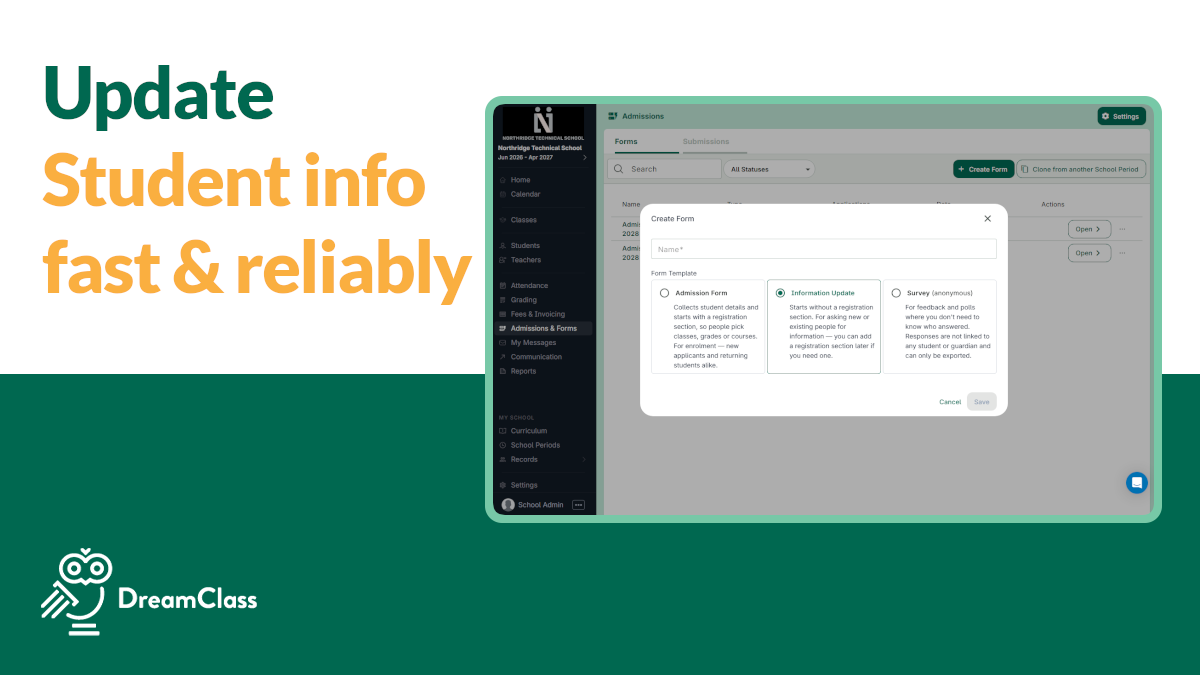
DreamClass lets you collect updated student information directly from the families already enrolled at your school, and have it flow straight into the right profile. The catch is picking the correct form type. Get that wrong, and the updates parents submit won’t attach to a student record at all. Which means you’d chase the same information twice. Let’s learn:
What an Information Update Form Does for Your Student Information
An Information Update Form is built for one job. And that is refreshing student information tied to families who already have a DreamClass account. Send one out and you can ask parents to confirm or correct a home address, a phone number or email, emergency contacts, medical details, or any other student or family field you’ve set up in the platform. Once a guardian submits the form, the answers link automatically to that student’s existing profile. That way, your records stay current, without anyone re-entering data by hand or you exporting a spreadsheet to track who responded.
So, that link to the profile is the part worth paying attention to. It’s what separates an Information Update Form from a simple email request or even a paper packet. In other words, instead of a message sitting in someone’s inbox, the answer a parent submits shows up directly on the student’s record. And it’s ready for staff to review, without any manual data entry step in between.
Choosing the Right Form Type to Update Student Information
Information Update Form vs. Admission Form
DreamClass gives you two share settings for any form: “anyone with the link,” which works for people who don’t have a school account yet, and restricted access to people with a school or guardian account. For collecting new-family enrollments, the open link makes sense. For updating student information among families you already serve, restrict the form to guardian accounts. Once you publish, you’ll see every guardian on file and can invite them directly. DreamClass treats an Information Update Form built this way almost the same as a restricted Admission Form. The steps for building each are nearly identical. The difference shows up mainly in how the form presents itself to the parent filling it out.
Why You Shouldn’t Use a Custom Form
Skip the Custom Form type for this task. It’s designed for anonymous, standalone questions, like satisfaction surveys asking how happy a family is with the school or a teacher, or quick check-ins on classroom content. Responses to a Custom Form don’t connect to a student or guardian profile. So, if your goal is updating student information on record, that data would effectively go nowhere useful. You’d have answers sitting in the form’s results, disconnected from the student file your staff actually reference in their workflow. Reach for an Information Update Form or a restricted Admission Form instead, since both are built to write directly into the profile.
When to Send a Student Information Update Form
The most common trigger is the start of a new school period, when families’ contact details, emergency contacts, or medical notes may have changed over the break. Some schools also send one mid-year, after a family moves, changes a phone number, or updates an emergency contact. It’s worth sending one ahead of re-enrollment too, so the student information on file is accurate before you generate contracts, invoices, or class placements for the coming term. Because the form only takes guardians a few minutes to complete, there’s little reason to wait for a single annual push, if something changes sooner.
Before You Send a Student Information Update Form
Because these forms target families you already serve, rather than brand-new applicants, a few things need to be true on your end before you hit publish. Otherwise, guardians will run into a dead end when they try to log in. Som confirm the following, in order, and make sure the:
- student’s profile already exists in DreamClass
- designated guardian’s profile already exists and is linked to that student
- guardian’s account has been activated
- guardian has working access to their DreamClass portal login
Miss any one of these, and a guardian won’t be able to log in and reach the form at all. If you haven’t activated guardian accounts yet, our guide to inviting guardians to the DreamClass portal walks through getting them set up before you send anything.
How Guardians Update Student Information Through the Portal
This is the part that sets an Information Update Form apart from an open, public form. Guardians have to log in before they can see or complete it. Where a new-family applicant might fill out an Admission Form without ever creating an account, an existing guardian hits a “log in and continue” prompt first. That single requirement is what keeps the submitted data tied to the right family, instead of floating around unattached. Now, once they’re logged in, the process feels the same as filling out any other DreamClass form. They’ll answer the fields you’ve built, and submit.
Setting Up Your Information Update Form Step-by-Step
Once you’ve confirmed the prerequisites above, building and sending the form itself is a short process. Here’s the sequence from start to finish, from opening the form builder to a guardian submitting their answers:
- Go to Admissions and Forms in your DreamClass account.
- Select the Information Update Form type, not Custom Form, since only Information Update Forms and restricted Admission Forms link submitted answers to a student’s profile.
- Build the form with the fields you want families to confirm or update.
- In the share and publish section, restrict the audience to people with a guardian account instead of “anyone with the link”.
- Publish the form, so guardians can see and complete it.
- The guardian logs in to their DreamClass portal, completes the form, and submits it.
Skip the publish step and none of the earlier setup matters. Guardians will have nothing to open, even if you’ve already shared a link or sent an invite. Everything’s going to fall through. But, once the form is live, you can see and invite guardians directly from that restricted audience list. There’s no need to track down email addresses separately.
DreamClass Wonderful Experience
Made communication with parents very easy Creating Forms Attendance
Once the workflow clicks for your front office, updating student information stops being a once-a-year scramble and becomes something you can run whenever records need a refresh, whether that’s before re-enrollment or mid-year when a family moves.
All in one portal
I am able to keep all student information in one portal, such as lesson plans, quizzes, and invoices.
Laurie P, Owner · Capterra · 3.0 ★★★
All in one portal
I am able to keep all student information in one portal, such as lesson plans, quizzes, and invoices.
OwnerEducation management
▶️ Watch the video:
0:00 Hello, hi there. This is Liva and in this video I’m going to explain all about forms and information update and how you can collect information from your parents through the system.
0:14 So, for this video I would like you to open up your Dreamclass account and go to Admissions and Forms. So, in Dreamclass, if you are, uh, if you have been using it for a while now or if you’re new here, you know that we have Admission Forms and by Admission Forms I mean that there’s a digital form with
0:36 , let’s see, one with information you’re asking and parents or students are giving you, um, the responses to the information you’re looking for by adding the form.
0:48 Their first name or their relationship status or the student information and birth certificates. So this is collect, collecting information online through a link.
1:00 But, because there are different types of, I want to shed some light on one of what are these types of forms.
1:07 So if you want to collect information from new parents, meaning enrollment agreements or people that do not yet have a Dreamclass account, please use the admission form type, right?
1:24 So any type of information collection has two types of audiences, right, in the share and publish section. It can be anyone with the latest information.
1:36 So anyone with the link means that you don’t need to have an account in order for you to fill this form out.
1:43 But, sometimes we want to collect information, and this video is about that subject, from existing people in our community, like a community of existing parents.
1:54 In order for this to work properly, you need to select restricted only to people with a school account, or restricted to people with a guardian account, in which case, once You publish your form, you’re able to see all of the guardians, and you’re able to share it and invite the guardians to fill this
2:17 form out in the account. But, please, please know that this means that the guardian has an account. in your school’s portal.
2:29 Which option of these you definitely need to skip if you’re looking to update, uhm, the information of the guardians. Do not use the custom form.
2:40 The custom form is simply, uhm, something that Dreamclass built that enables the school to ask generic questions to the parent audience, such as, how happy are you with our school?
2:54 Uhm, do you like the teacher questions? Do you Do you like the content in the classrooms? So the responses that the parents are going to give you are going to be anonymous, because in this form, we just build a mechanism for you to ask questions, but you don’t know which answer them.
3:13 So the one that you definitely don’t need is, uh, the custom form one. So information update works similarly with the admission form when you make it, uhm, when you make it targeted to, uhm, to people with a specific account.
3:31 It works the exact same way and you can choose to use that one as well. There’s not a lot of differences.
3:41 There are some differences only in the way this information is presented to the parents, but other than that, it’s the same.
3:51 So when you want to collect information from your existing community, I’d recommend to select the admission form type. Build the form that is going to have all the different questions that you want to ask.
4:07 And then, it’s good to know what happens when the parent has to fill this out. So, when you are an existing parent, and you’re about to go fill this form out, you have to log in in order to answer those questions.
4:25 Right? It says log in and continue. This is the biggest change from the regular and open admission form. It doesn’t require you But if you want to build this form for your existing community, please make sure that you use those settings.
4:41 Once you’re done, don’t forget to publish your form in order for you to be able to collect answers on the form.
4:49 And I hope this video was helpful. Bye!
Need to activate guardian accounts before you send an update request?
Our step-by-step guide covers inviting guardians to the DreamClass portal from scratch.
Related Reads
FAQ
Frequently Asked Questions
What’s the difference between an Information Update Form and a Custom Form?
An Information Update Form links submitted answers to the student’s existing DreamClass profile. A Custom Form collects anonymous, standalone responses that don’t attach to any profile, so it isn’t built for updating student records.
Do guardians need a DreamClass account to update student information?
Yes. Information Update Forms are restricted to people with a guardian account. Guardians must log in before they can view or complete the form.
Can I use an Admission Form to collect updates from returning families?
Yes, as long as you restrict the Admission Form to guardian accounts, rather than sharing it as an open link. Built this way, it works almost the same as an Information Update Form, with only minor differences in how it’s presented to parents.
What happens if a guardian doesn’t have portal access yet?
They won’t be able to log in and reach the form. Guardian profiles need to exist, be linked to the right student, and have an activated account with portal access before you send an update request.
Do I need to publish the form before parents can fill it out?
Yes. Publishing is what makes the form collectible. Until you publish, guardians have nothing to open, even if you’ve already shared a link or sent an invite.